Issue an invoice and take a payment
Get the invoice for a completed visit, check it, issue it, record the payment and print it.
In Clinico you never type an invoice line by hand: the invoice is built from the services recorded on the visit. The front desk checks it, issues it, takes the payment and prints it for the patient.
Before you start
- The doctor must have completed the visit. Until then there is nothing to invoice.
- If your clinic has turned on Auto-generate invoice on visit completion (Settings, then Billing), a draft invoice is waiting as soon as the doctor completes the visit. If not, open the completed appointment (the Generate Invoice button on its row in Appointments) and click Generate draft invoice. For a visit that is not charged at all, use Skip billing instead.
- Prices, and the insurance company's prices for an insured patient, are filled in from the service catalog. You do not type them.
Review and issue the invoice
In the sidebar, click Billing. To find the invoice, use the search box, or the filter chips (Draft, Issued, Unpaid, Partially Paid and more), then click the invoice number.
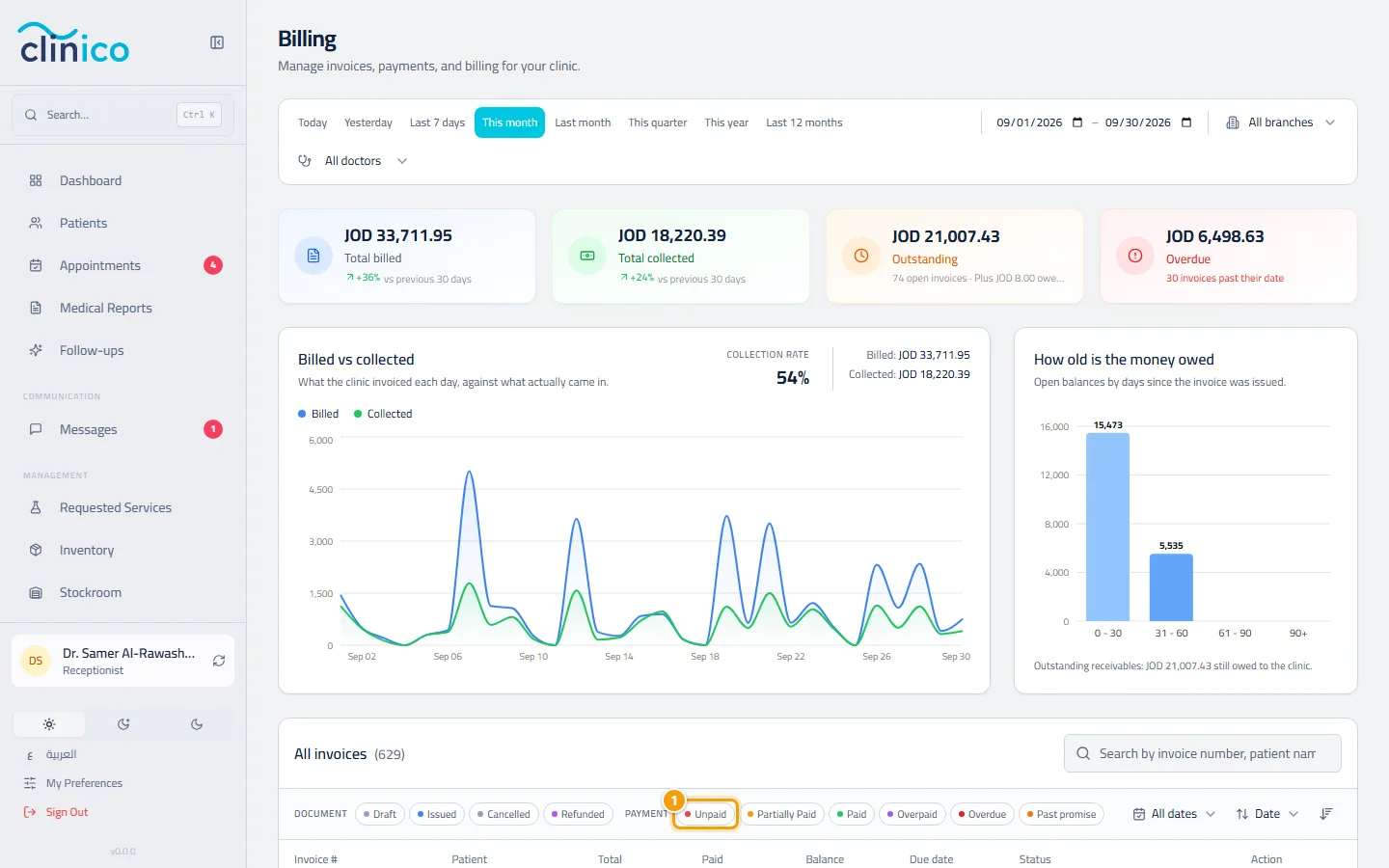
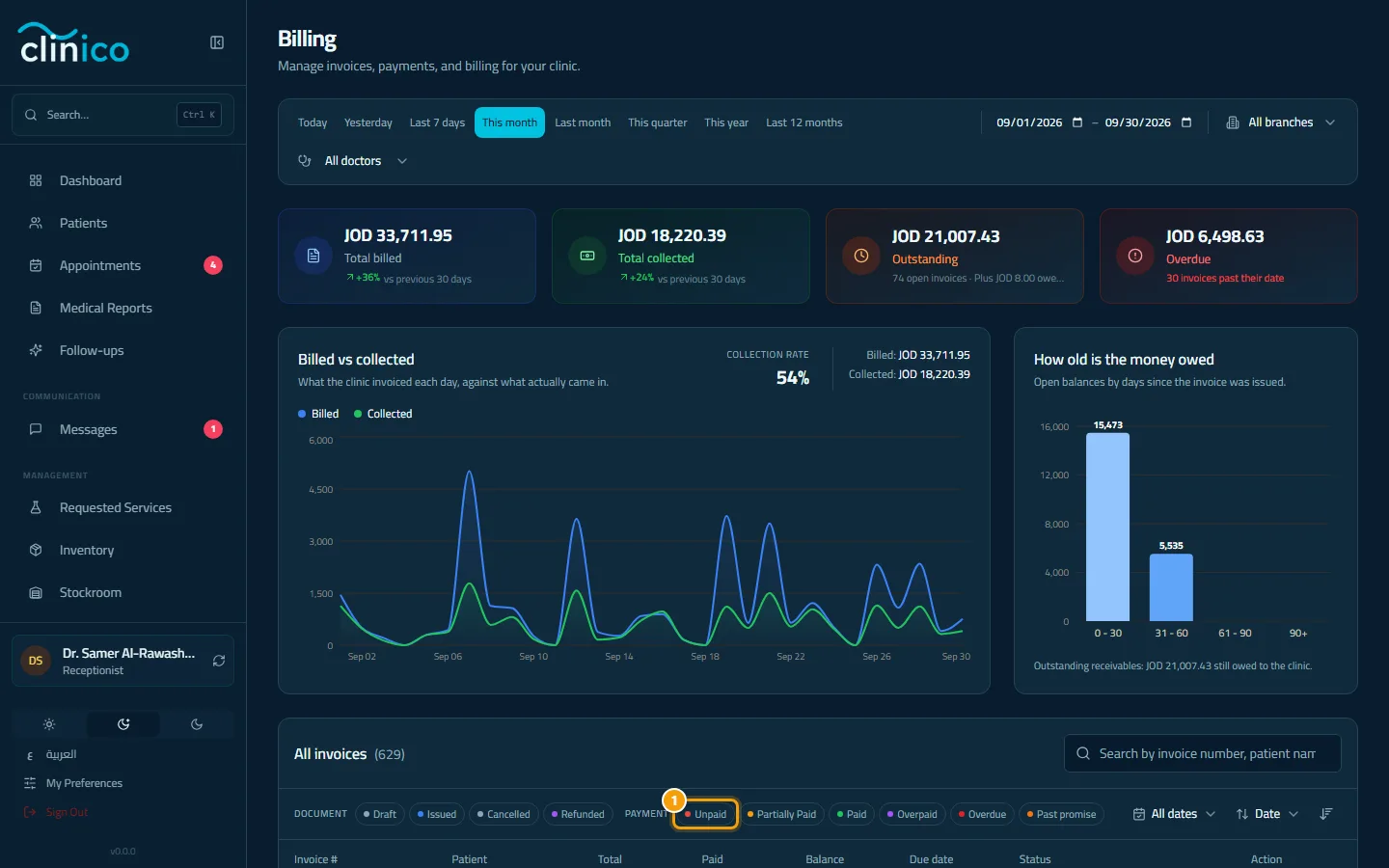
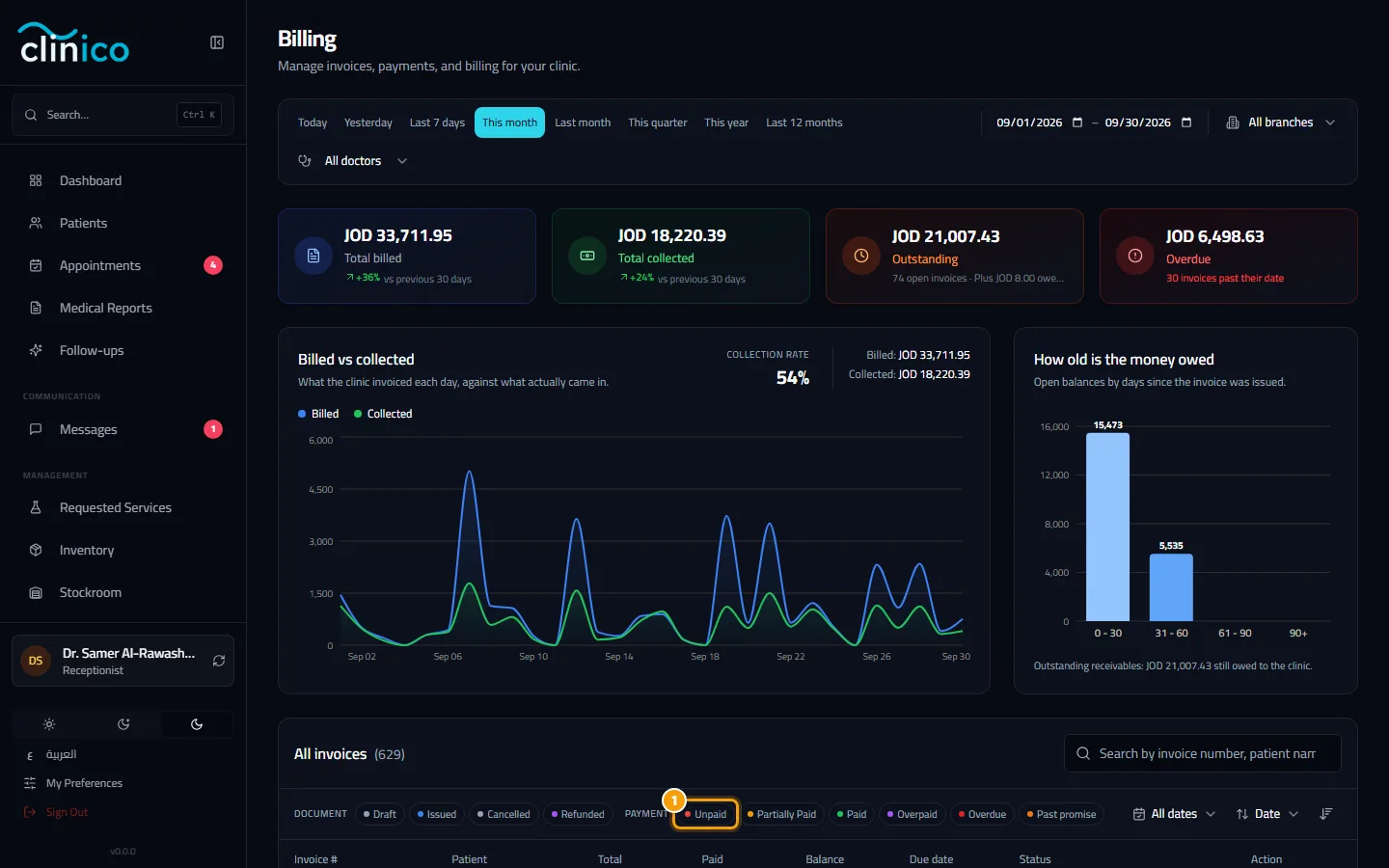
The invoices list and its filter chips Read the lines on the Items tab: services, quantity, price and total. If something is wrong on a draft, click More, then Edit Invoice, fix it and click Save Changes. This is also where a discount goes: on a line, or as an Invoice Discount, always with a reason. Receptionists see Edit Invoice only if the clinic allows the front desk to change prices.
When the draft is right, click Issue Invoice and confirm. The invoice is now official and frozen. This step does not take any money.
Take the payment and print
Click Record Payment at the top of the invoice.
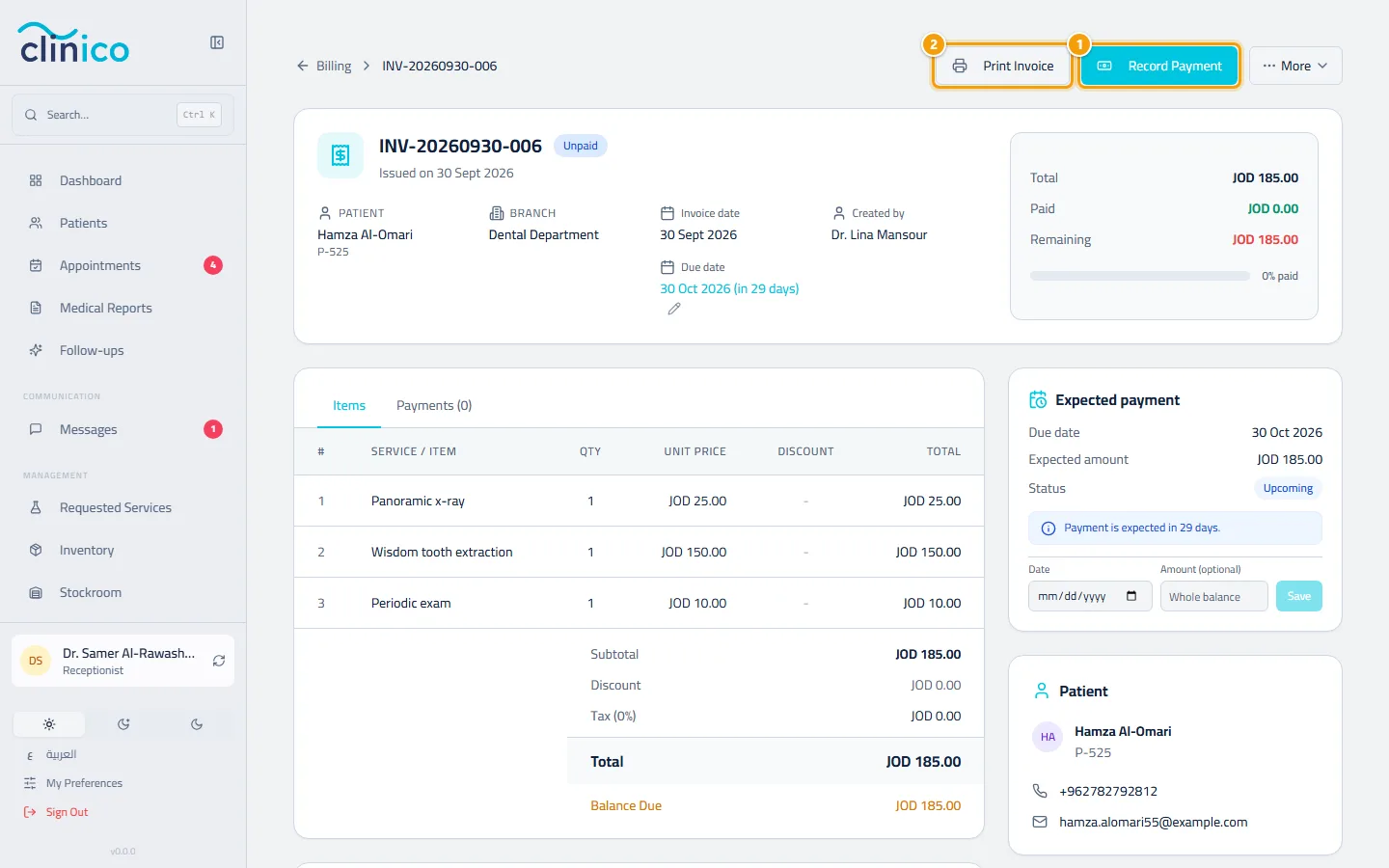
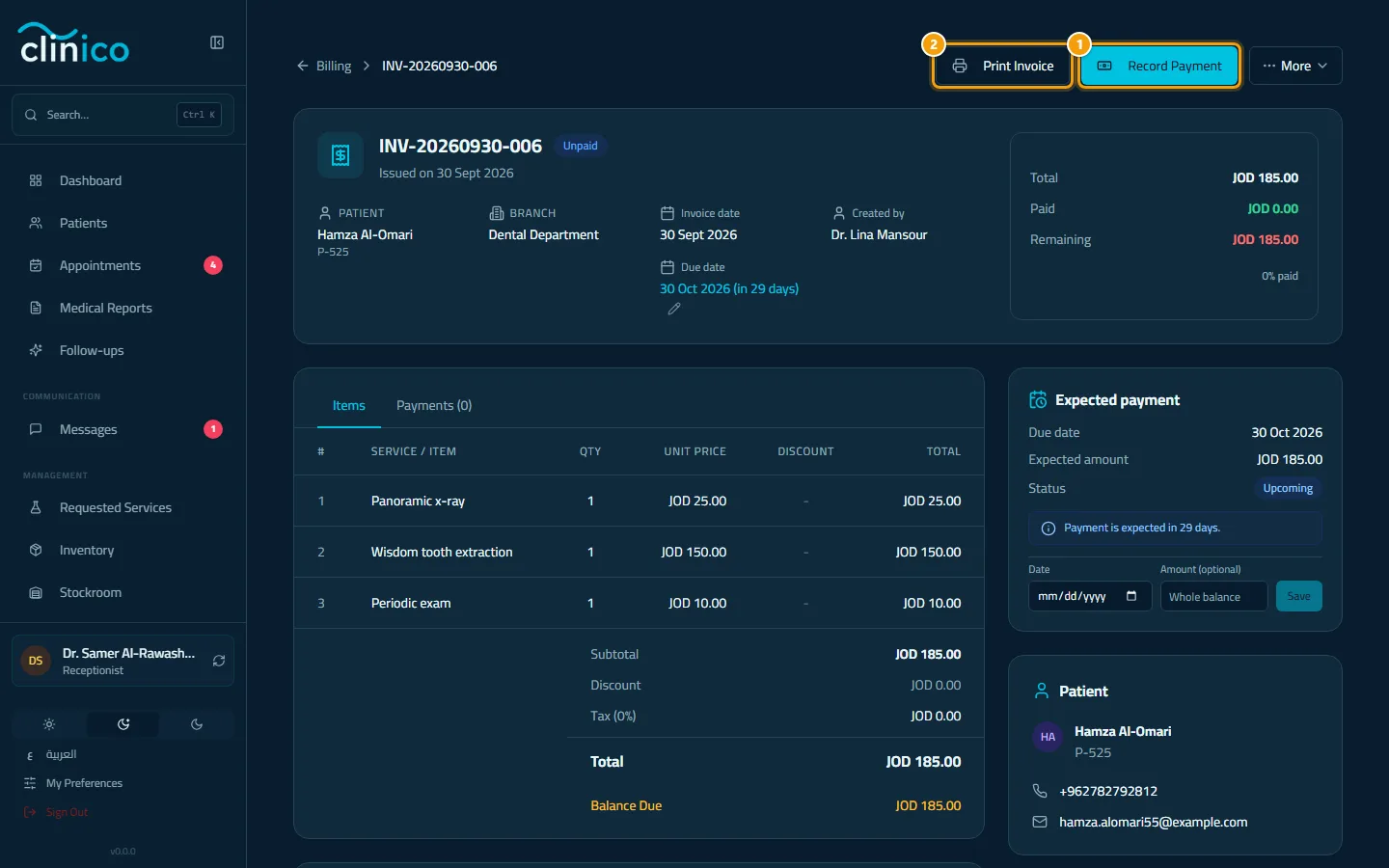
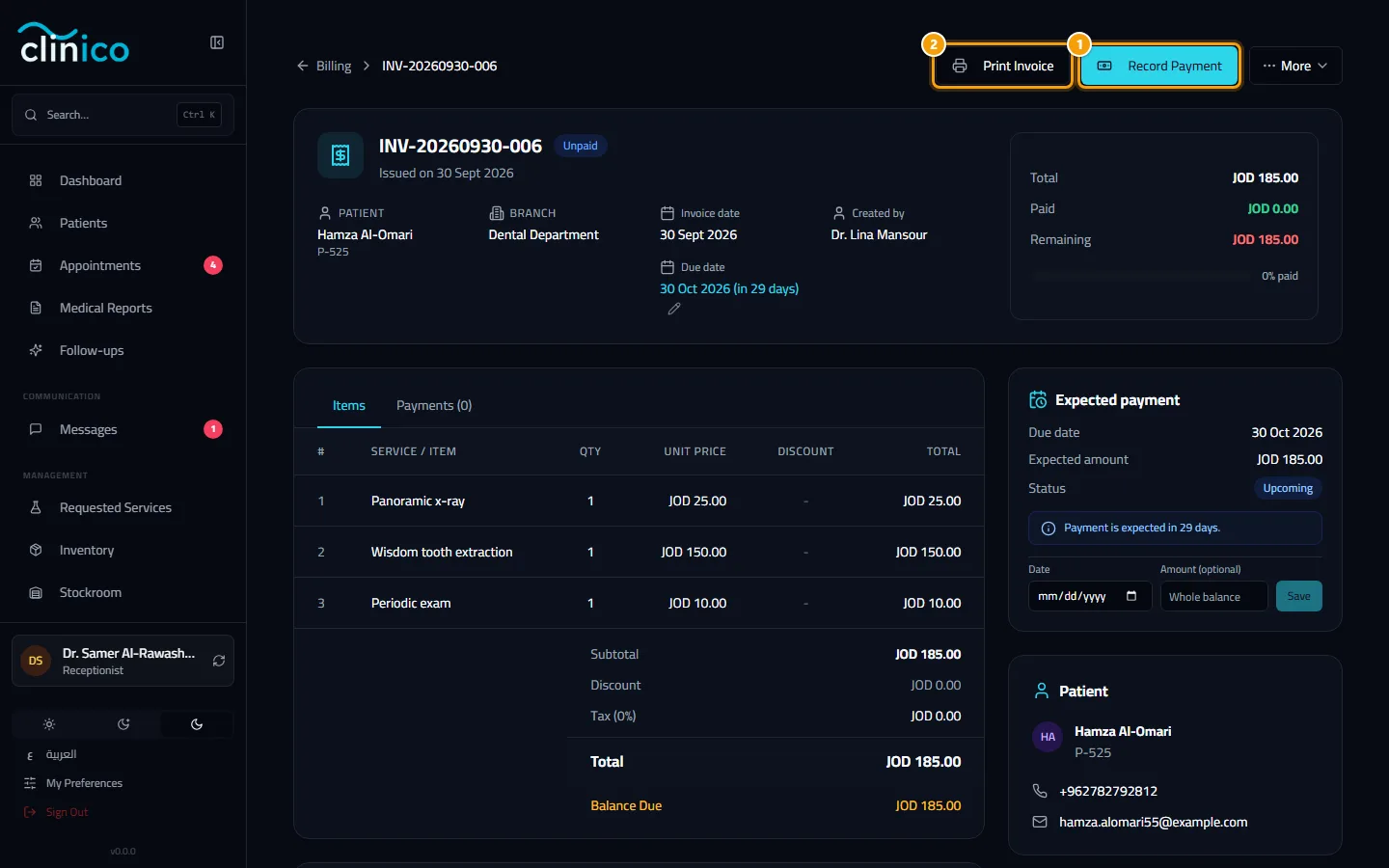
The invoice page with Record Payment and Print Invoice In the dialog:
- Check the Amount. It starts as the balance due; if you change it, Pay full balance puts the whole balance back.
- Pick the Payment Method.
- Type the Reference Number if there is one (a bank transfer or CliQ operation number, for example).
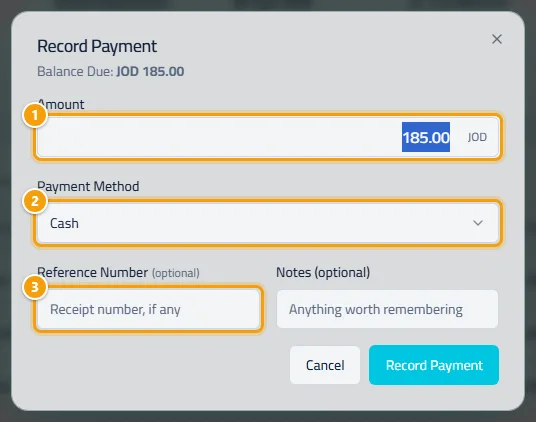
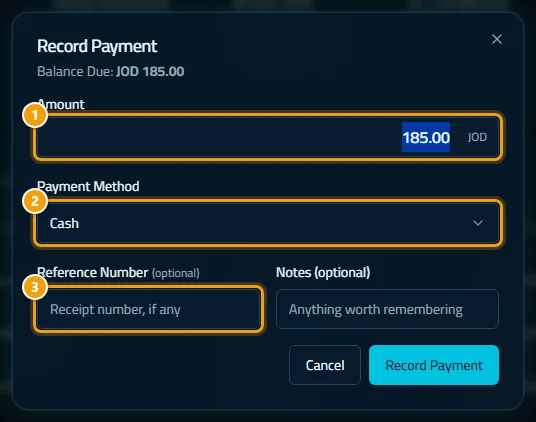
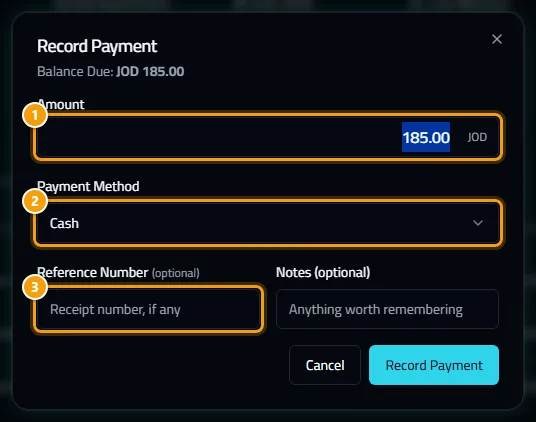
The Record Payment dialog: amount, method and reference Then click Record Payment to save.
Click Print Invoice to open the printable sheet in a new tab and hand it to the patient.
Payment methods
The clinic chooses which methods are offered in Billing Settings, normally Cash, Card, CliQ and Bank transfer. Patient credit appears only when the clinic is holding credit for this patient. Then the dialog opens already filled with that amount and says so, and you can change it. The amount can never be more than the balance due.
For a part payment, the status becomes Partially Paid and the dialog shows how much is still owed. Take the rest with Record Payment again.
After you finish
- The invoice shows Paid once the balance reaches zero, and the payment is listed under Payments.
- For a patient covered by an insurance company, see Bill an insured visit.