

Register a new patient
Add a patient to the clinic, deal with a possible duplicate, and find the record again on the profile page.
Every appointment, visit and invoice hangs on a patient record, so registering the patient properly the first time saves the front desk from fixing it later. It takes a couple of minutes.
Before you start
- Search the patients list first: the person may already be registered. Type a name, mobile number, ID or patient code in the search box.
- Have the patient's ID document and mobile number at hand.
Steps
In the sidebar, click Patients, then New Patient at the top of the page.
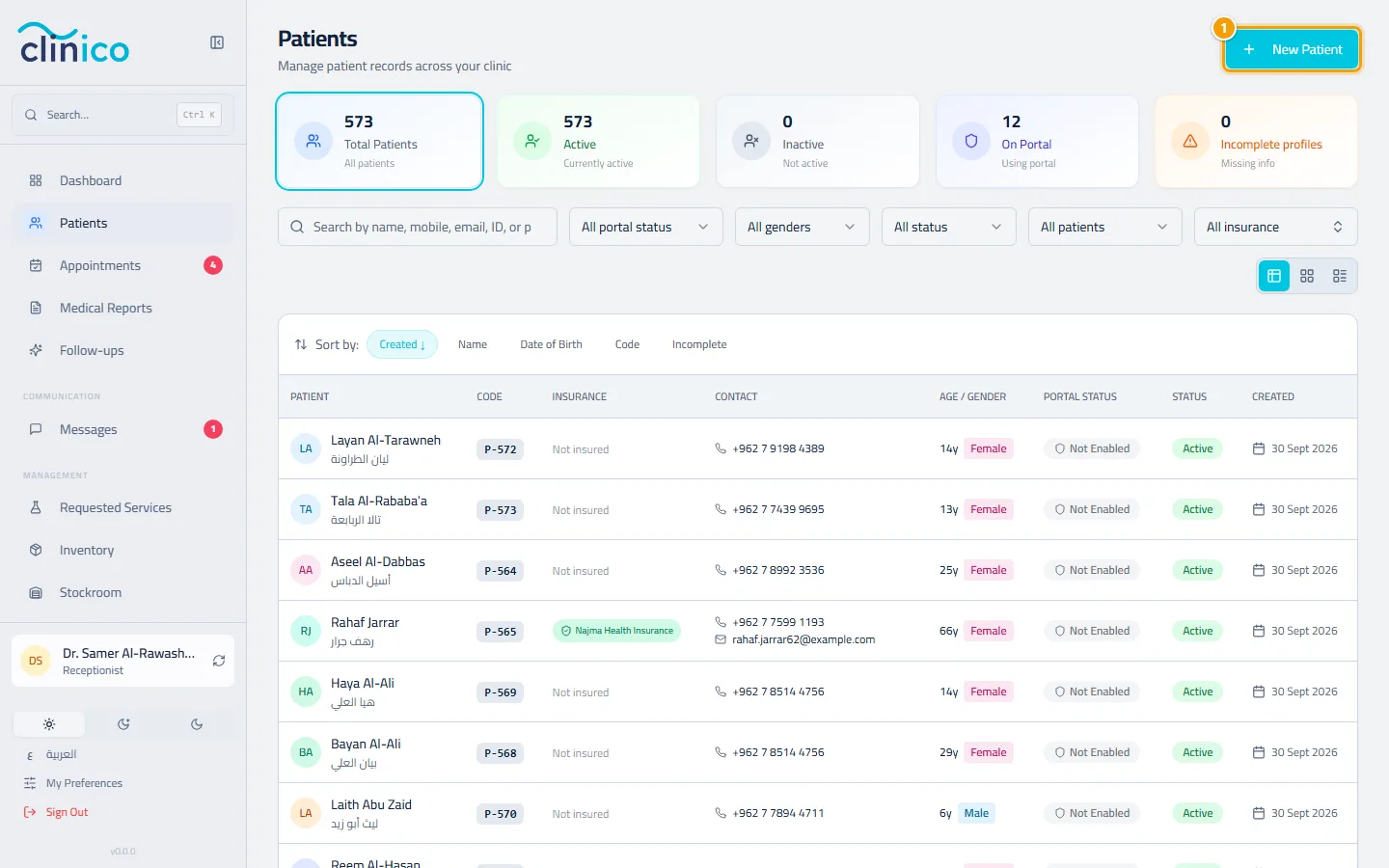


The patients list and the New Patient button Fill in the form:
- Work through the steps listed on the side, starting with Personal Information. Fields marked with a red star are required; the clinic's own template decides which ones those are, so your clinic may ask for more or less than another one. Fill in the other steps (contact details, insurance, address, portal, medical notes) only if you have the information: everything except the required fields can be added later.
- Click Save Patient at the top of the form.
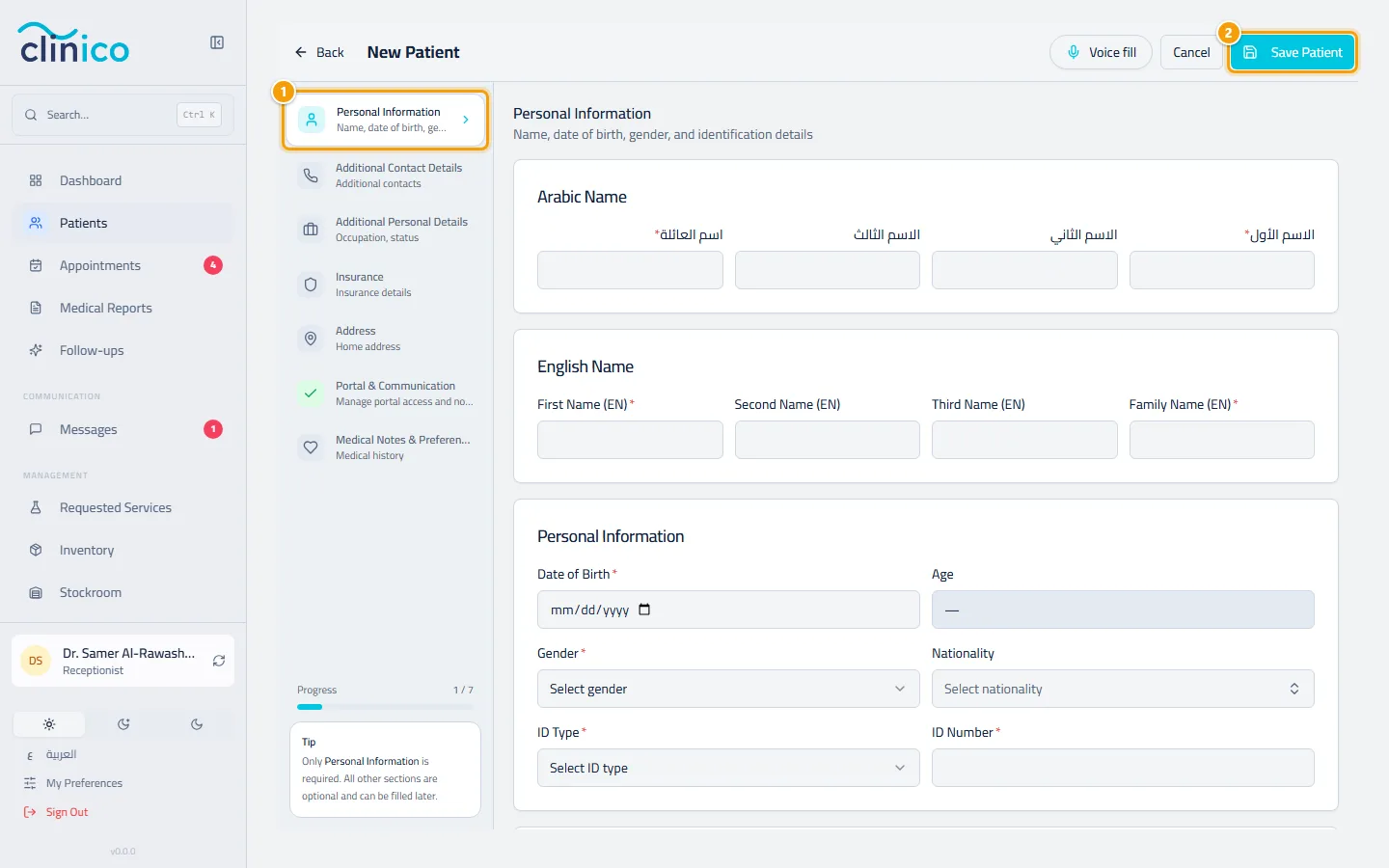
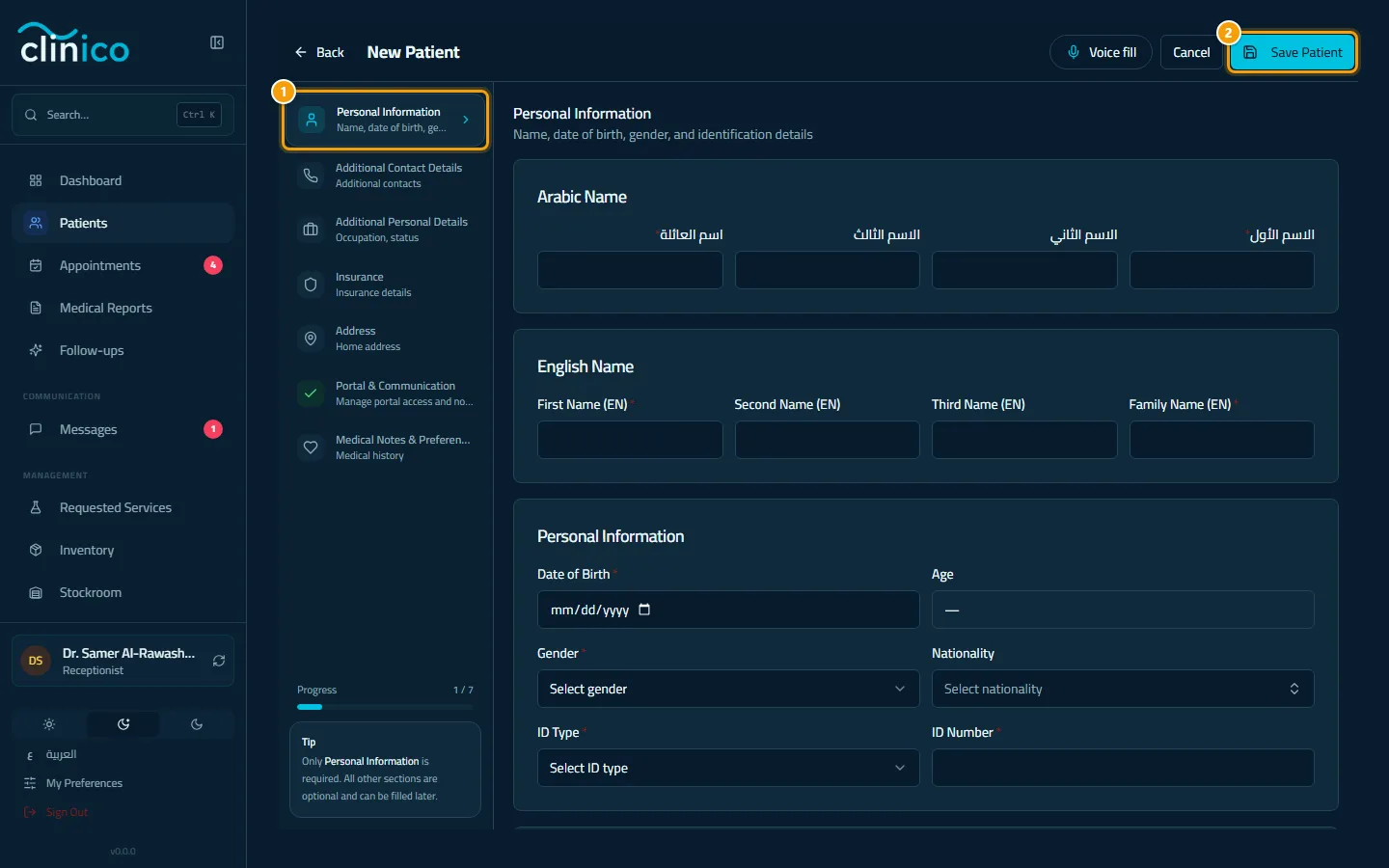
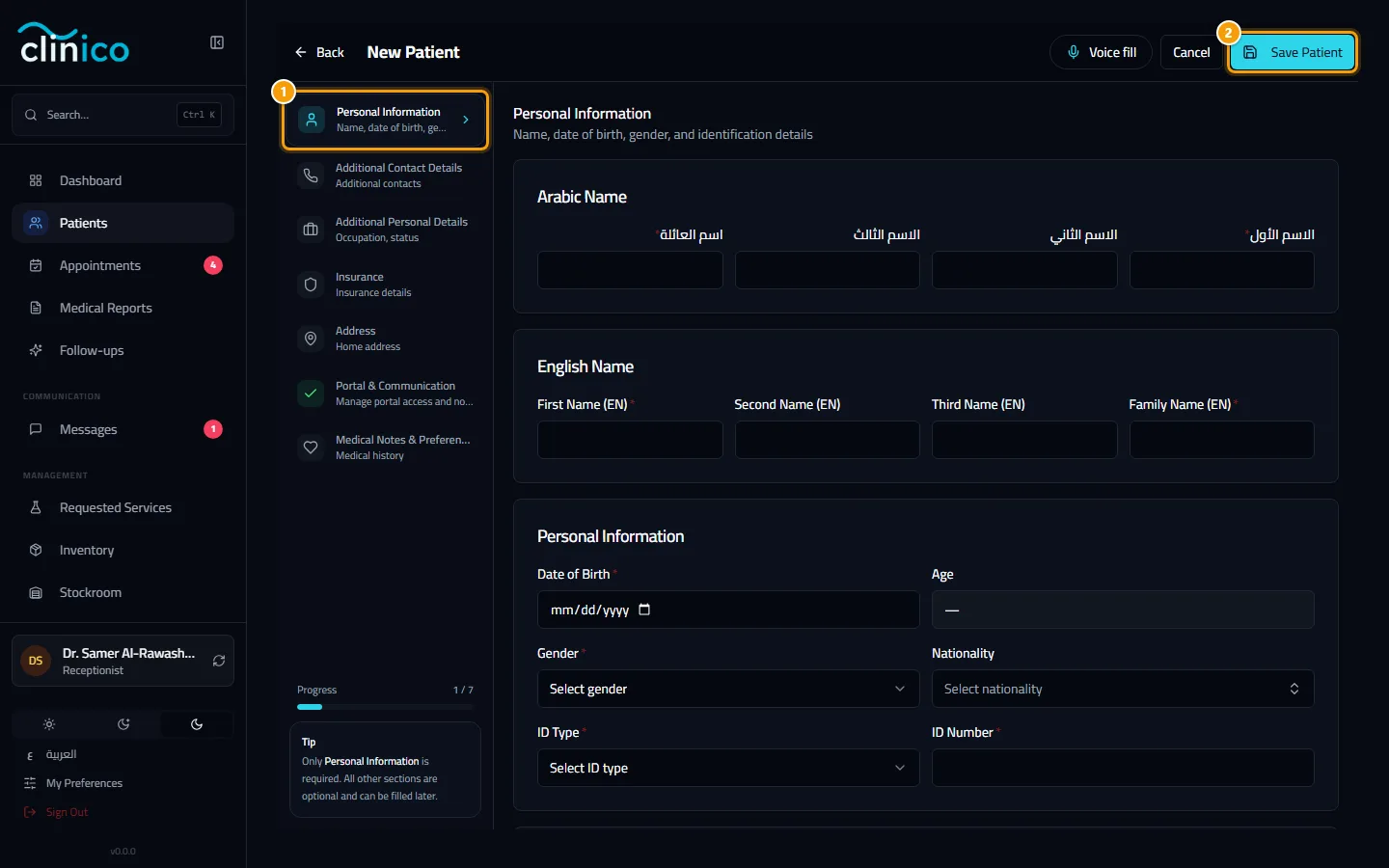
The new patient form with the steps on the side and the Save Patient button Clinico takes you back to the patients list. Click the new patient's name to open the profile, where the tabs show and extend the record: Overview, Timeline, Appointments, Clinical, Documents, Images, Billing, Communication and Family & portal. From the top of the profile you can book the first appointment with New appointment.
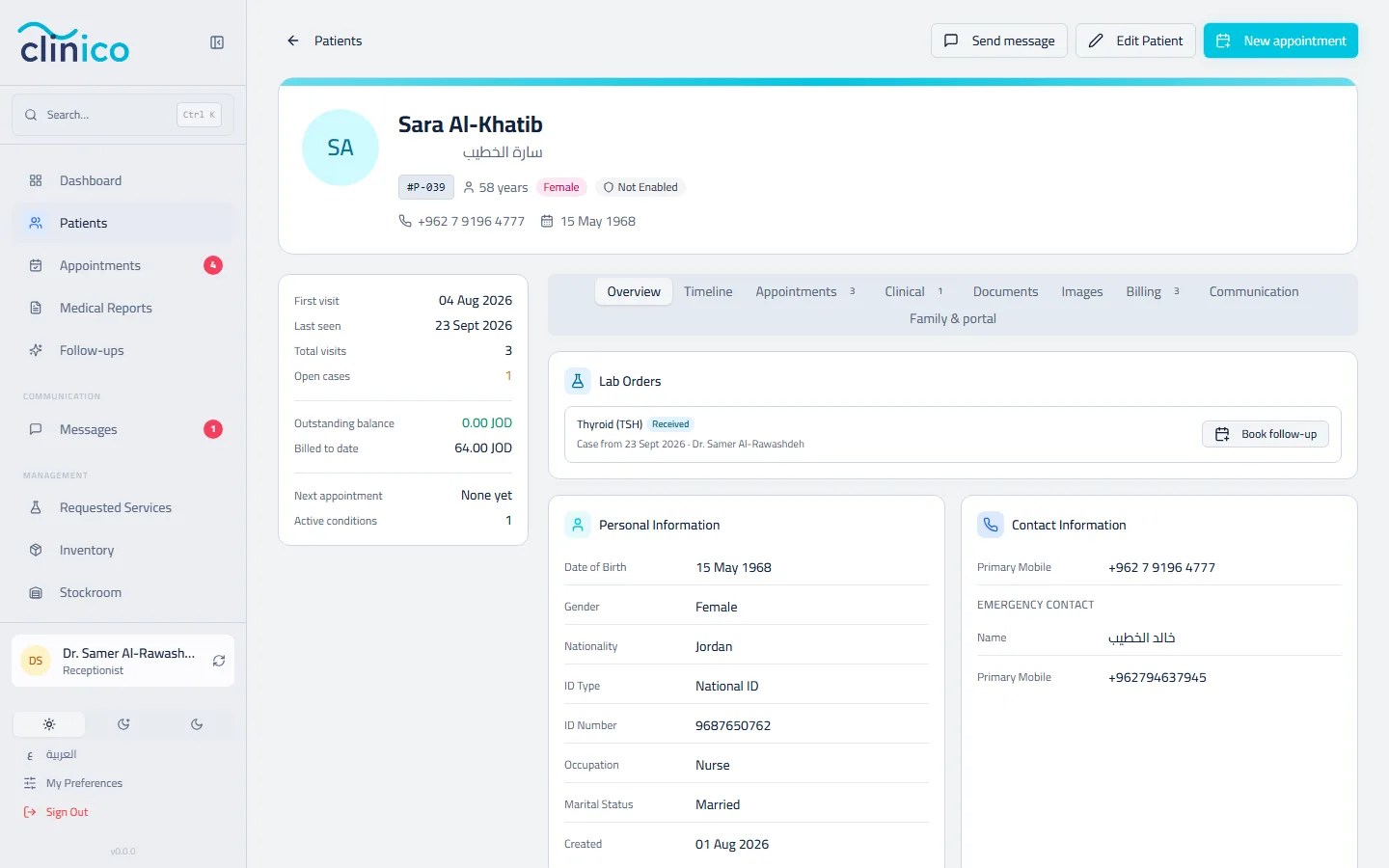
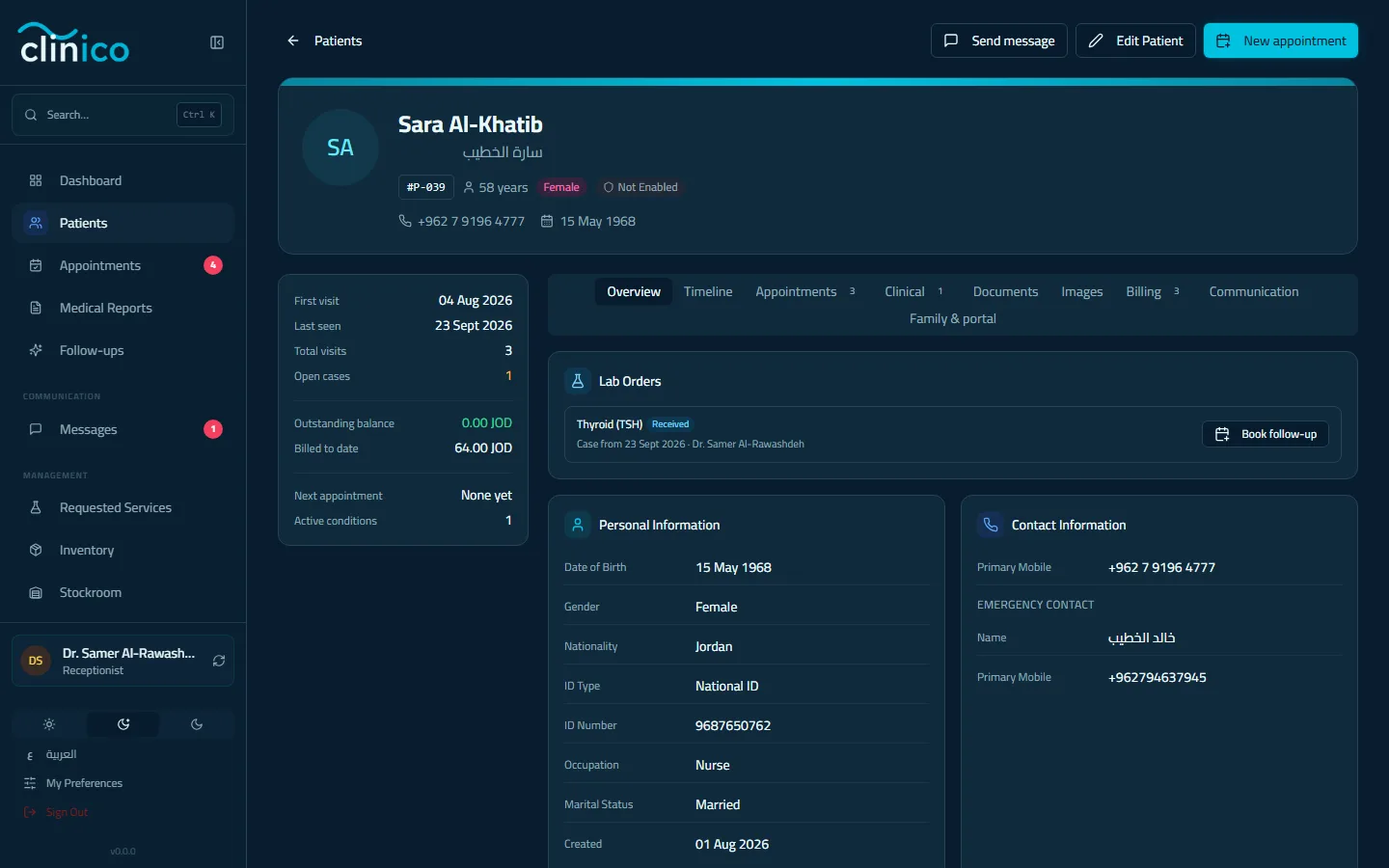
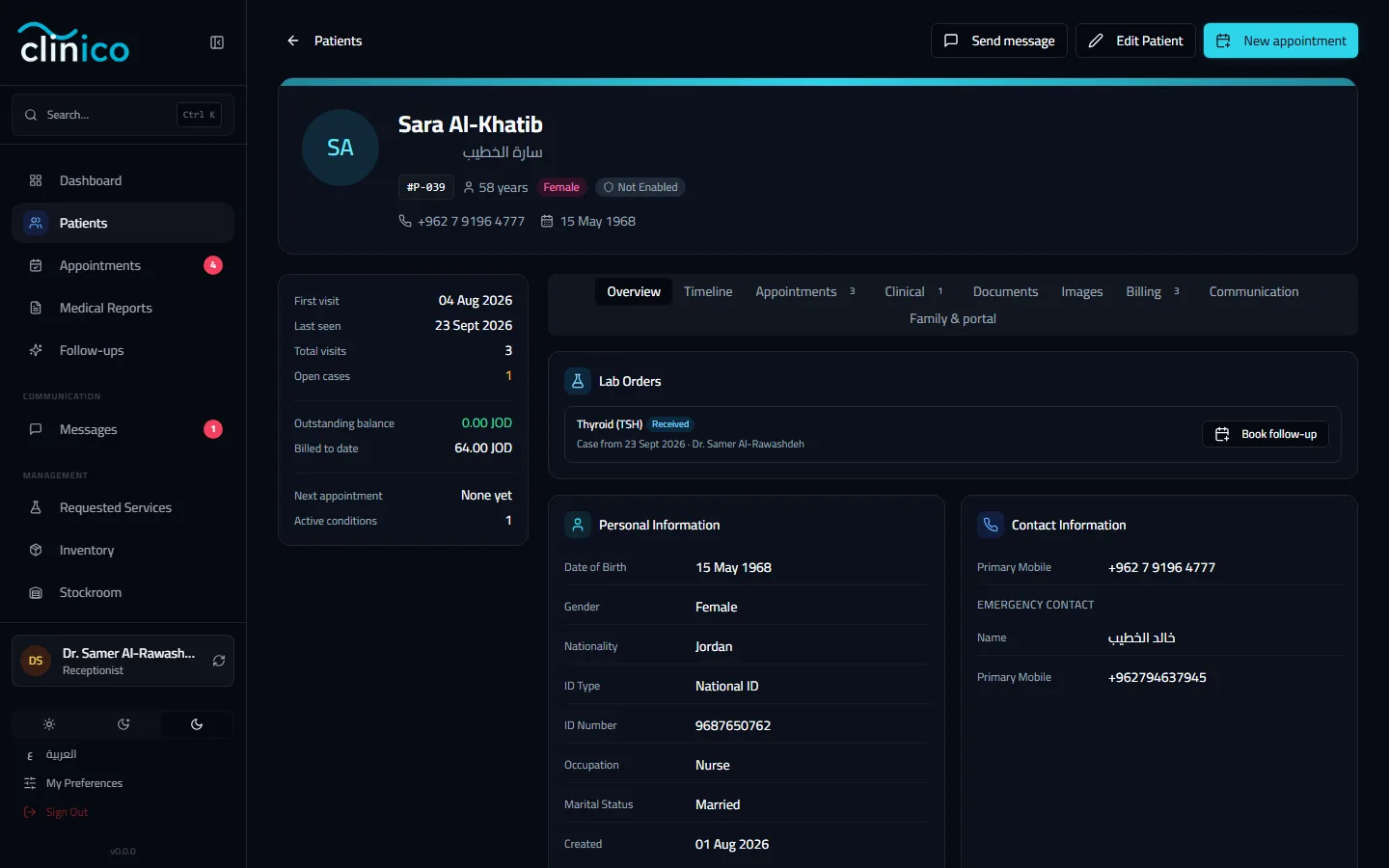
A patient profile and its tabs
If the patient may already exist
When another active patient has the same mobile number or email, Clinico stops before saving and shows Possible Duplicate Found with the matching value. Two choices:
- Go Back & Edit returns you to the form, for example to fix a mistyped number.
- Continue Anyway saves the new record. Use it when it is genuinely a different person, such as a brother, a sister or a parent who shares the same phone.
Allergies and conditions
Record allergies in the Medical Notes & Preferences step or later on the profile's Clinical tab with Add Allergy. The doctor sees them in every visit and in the prescription screen. When an allergy no longer applies, use Move to history on it: it is marked Resolved and kept in the history, never lost.
After you finish
- Next: Book an appointment for the new patient.
- An insured patient needs an insurance card on the record: see Bill an insured visit.