

Write and print a prescription
Write a prescription with its medications, issue it, then print it, download the PDF or repeat it later.
A prescription in Clinico is written once, issued, and then printed on the clinic's sheet with a QR code the pharmacist can scan. Most patients fill it at a pharmacy outside the clinic, and Clinico is built around that.
Before you start
- Only doctors can issue a prescription in their own name. An account that is not a doctor needs the "issue in another doctor's name" permission from an administrator.
- To have your signature on the sheet, set it once under My Signature (see the last section).
Steps
Open the visit and click Create Prescription, or go to Prescriptions in the sidebar and click New Prescription. From a visit the patient is already chosen and locked.
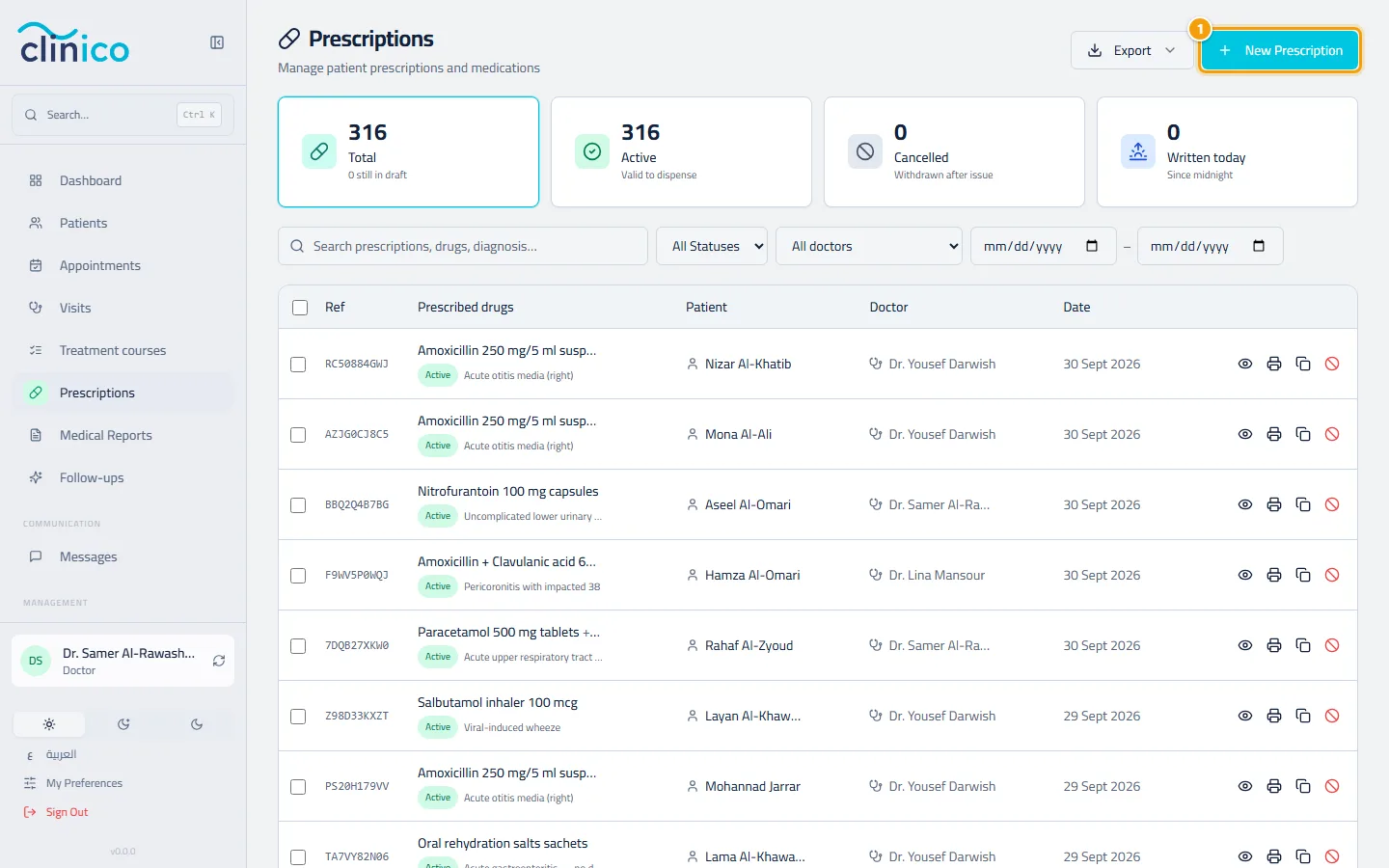
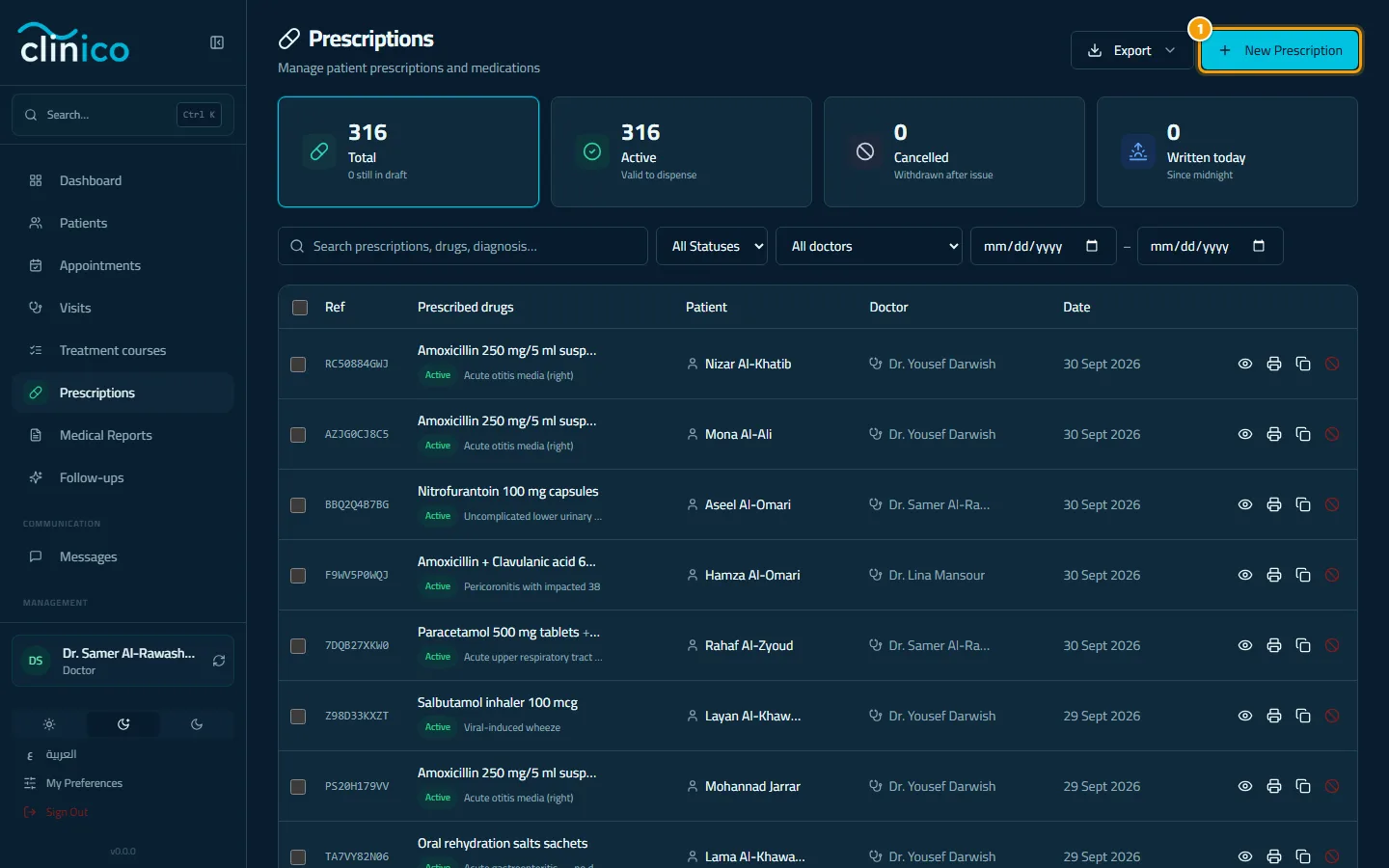
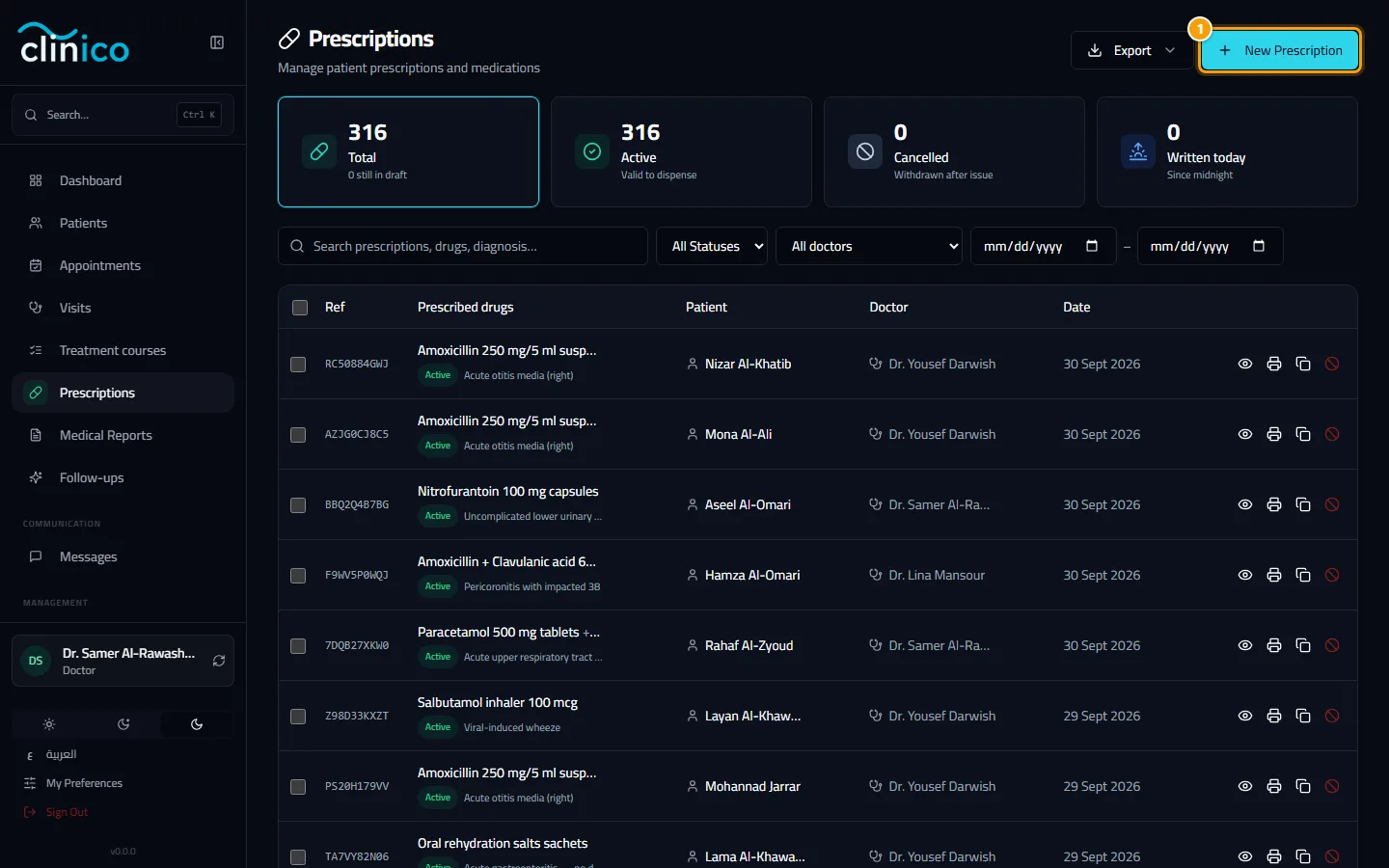
The prescriptions list and the New Prescription button If you started from the list, search for the Patient. Check the Prescribing doctor and write the Diagnosis. The patient's known allergies appear in a box on the form.
Under Medications, search the drug catalog or type a name. Fill in Dosage, Frequency and Duration; the small buttons under each field fill common values for you. Open More details for Route and Instructions. Click Add Medication for each further drug.
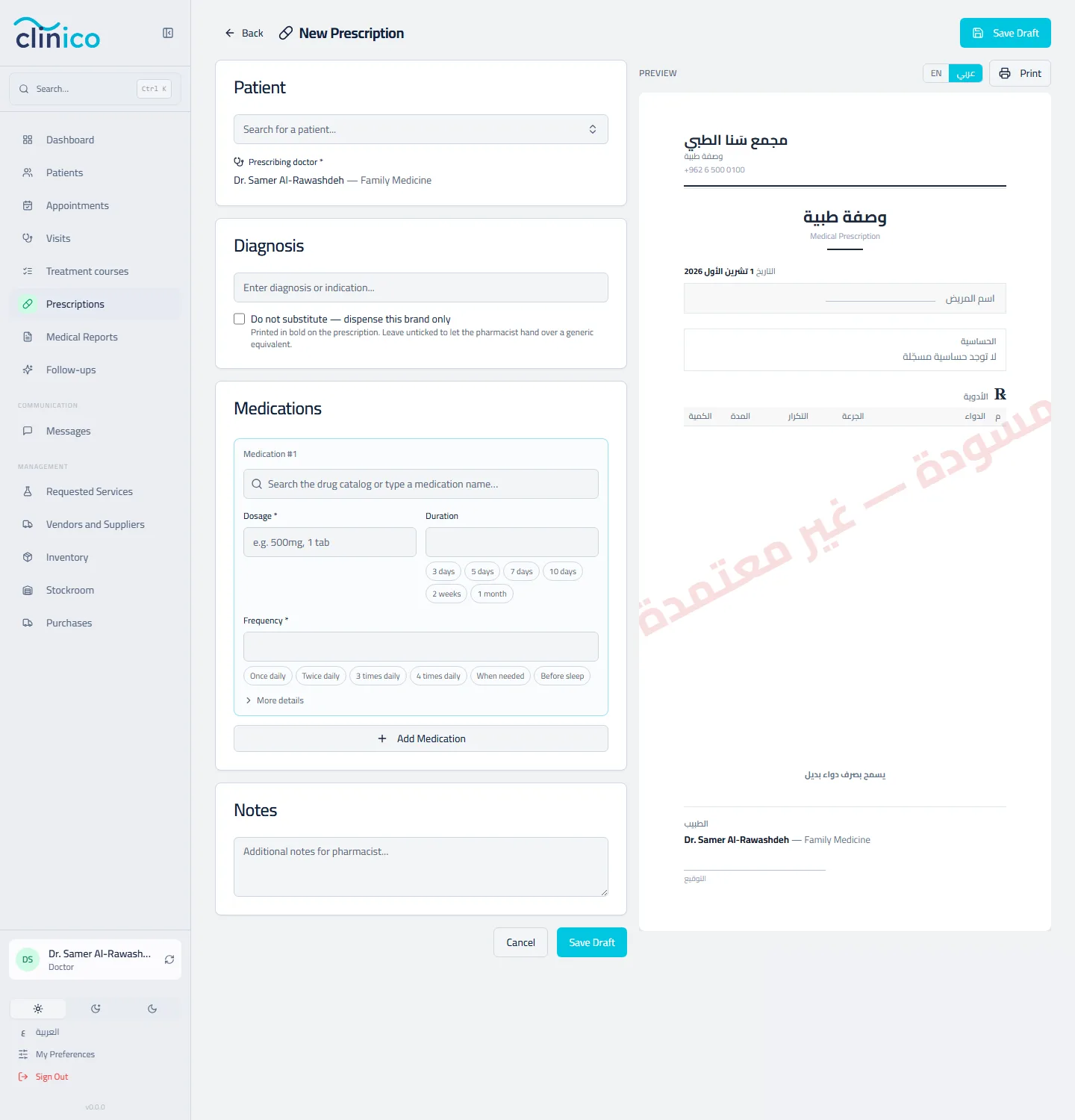
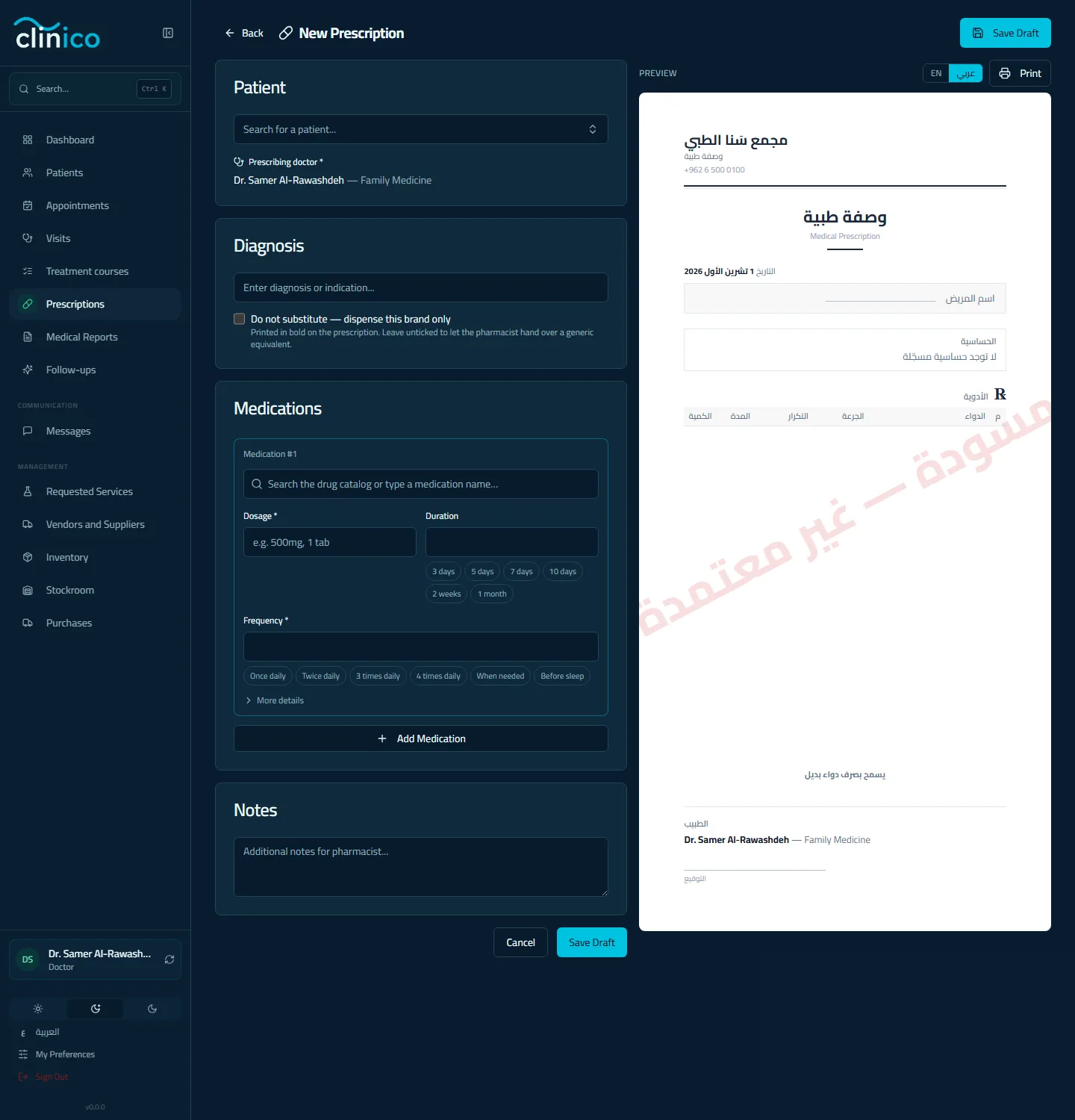
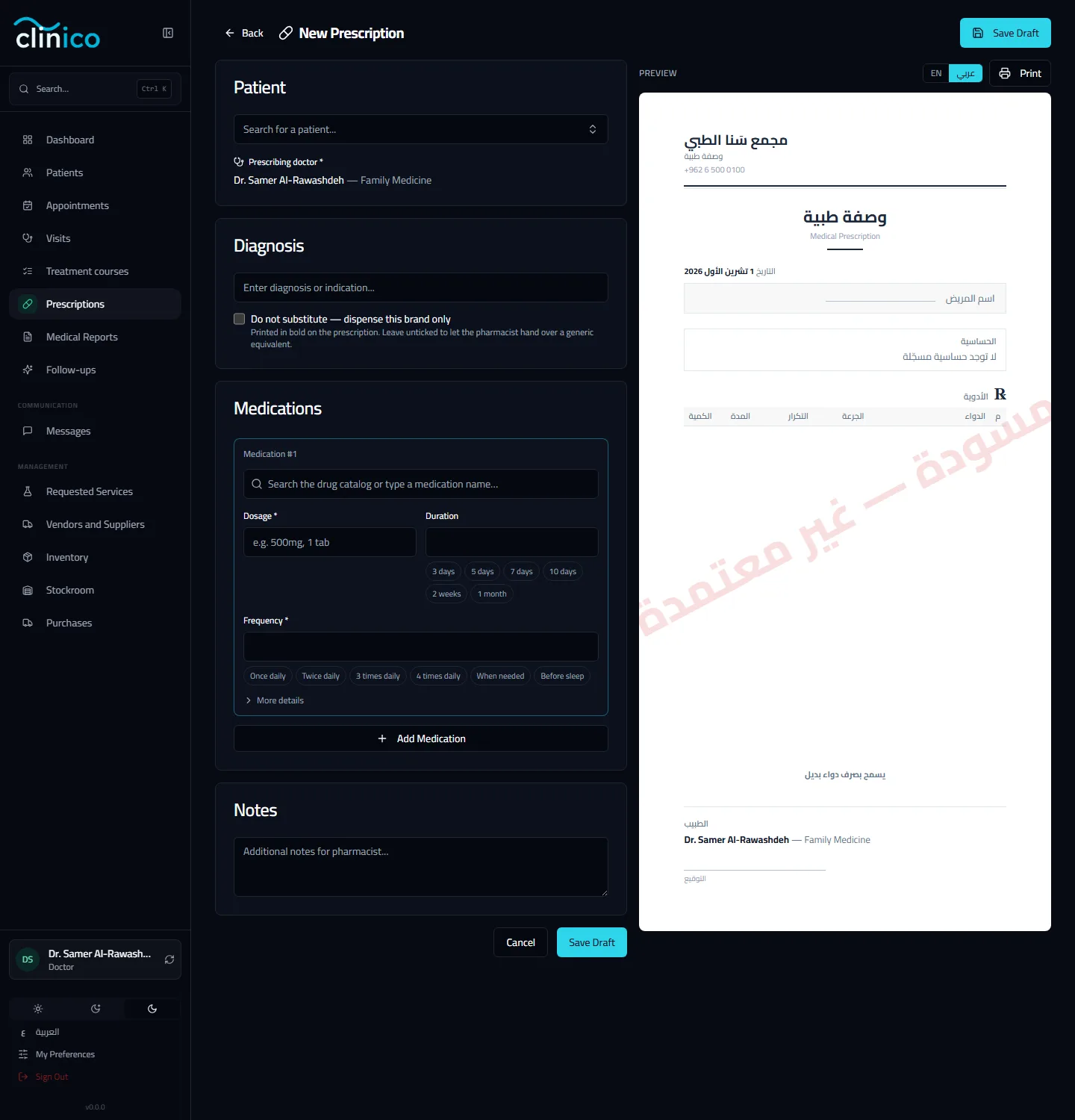
The new prescription form beside the live sheet Watch the preview on the right: it is the actual sheet. The EN / عربي switch above it chooses the printed language, independent of the language you work in.
Click Save Draft. A draft can still be edited or deleted.
Issue it
- Open the saved draft and click Activate. From this moment the prescription is frozen: it can no longer be edited or deleted. If something is wrong, cancel it with Cancel Prescription and write a new one.
Print or download
Click Print to print the sheet on the clinic's paper size. To change the paper, colour, letterhead or what appears on it, see Design the printed prescription.
Click Download PDF to save or send a PDF.
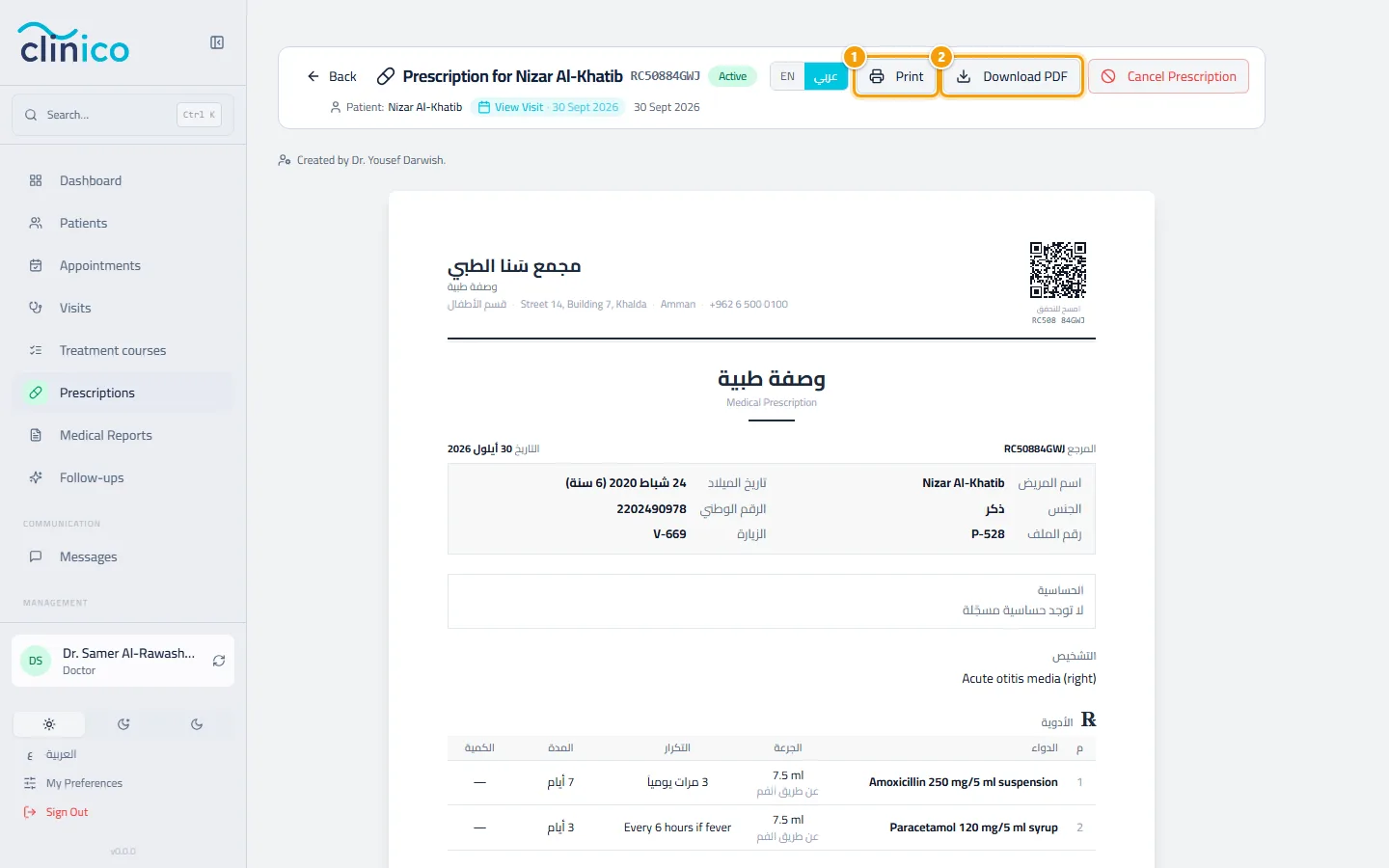
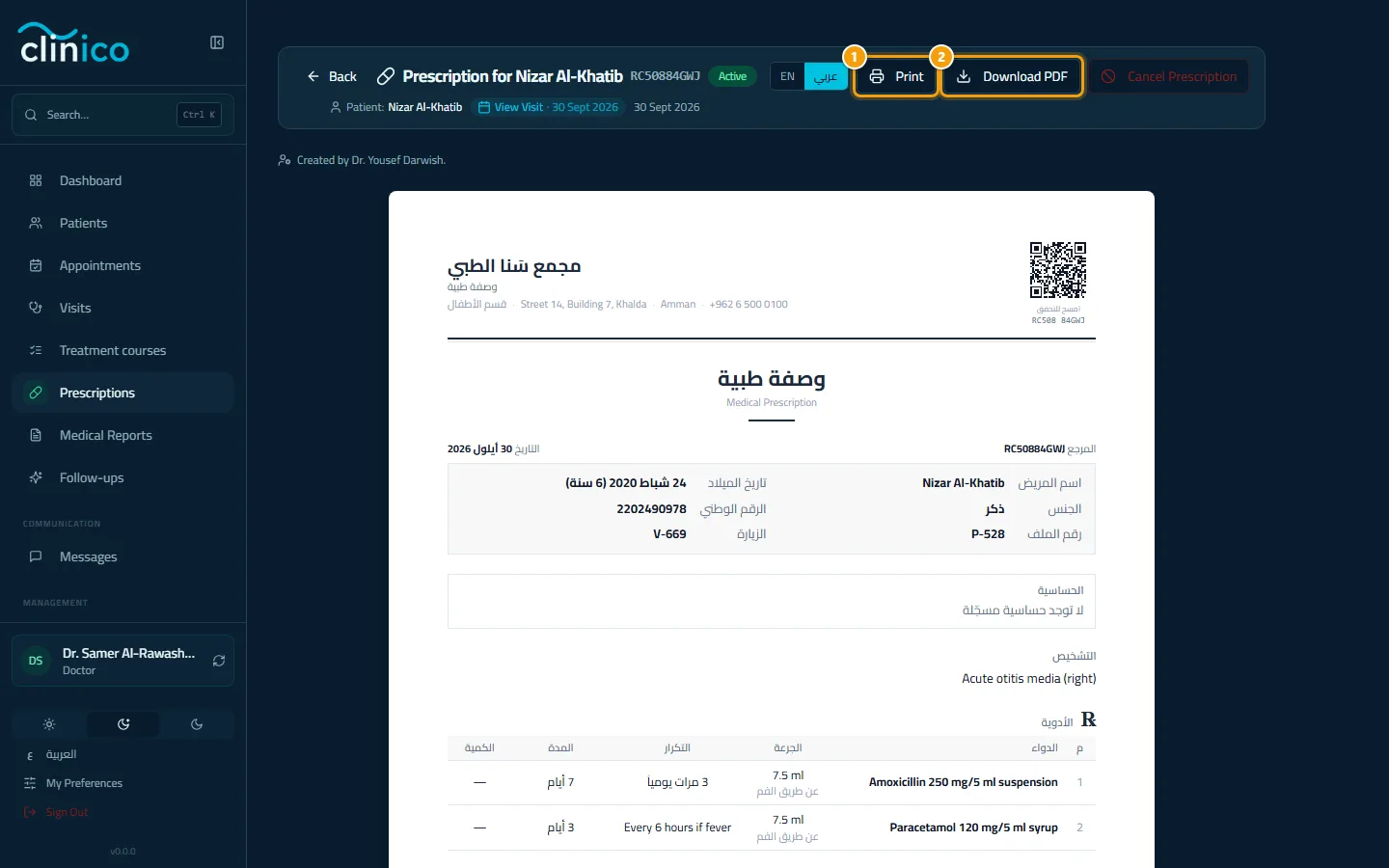
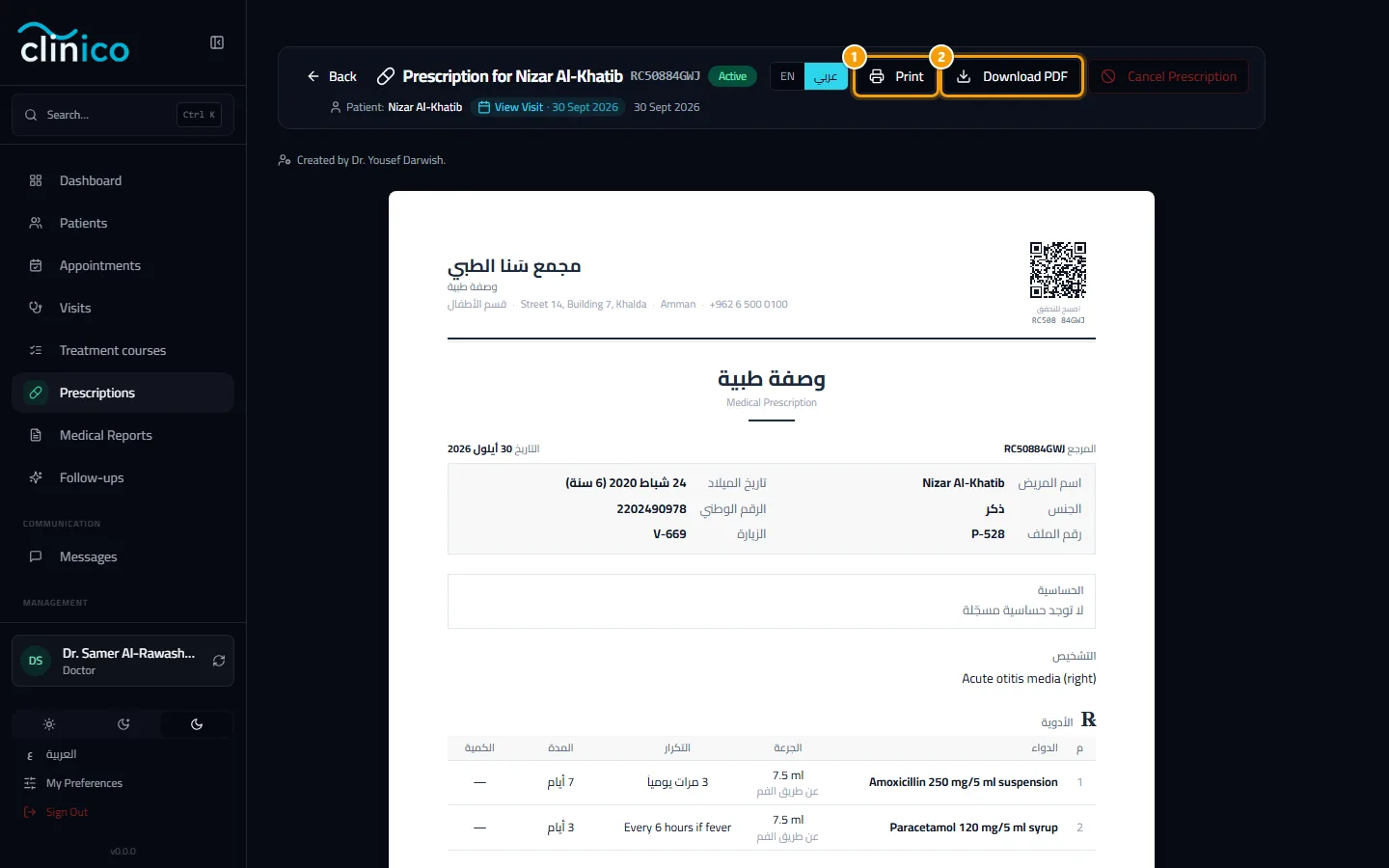
Print and Download PDF on an issued prescription
Repeat a prescription
- For a refill, click Repeat on the prescription's row in the list. Clinico creates a new draft copy for you to review and activate; the original never changes.
Good to know
- The QR code on the sheet opens a public verification page. Without the patient's date of birth it only confirms the sheet is genuine, the prescriber, the date and the number of drugs; the drug lines appear only after the pharmacist types the date of birth printed on the sheet.
My Signature
Open My Preferences from the sidebar and choose My Signature.
Under Set a new signature, use Sign here to draw it, or Upload an image for a scan.
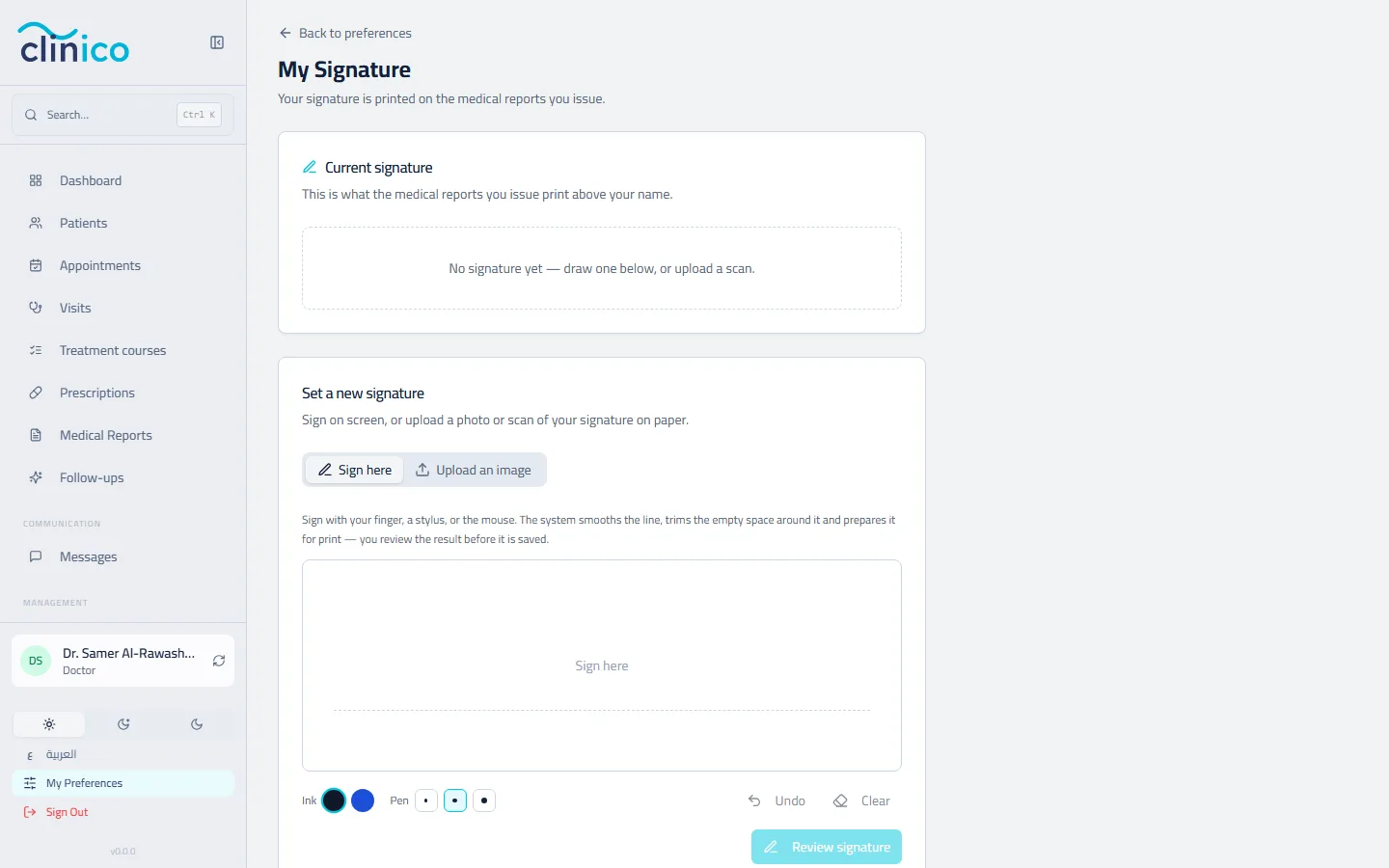
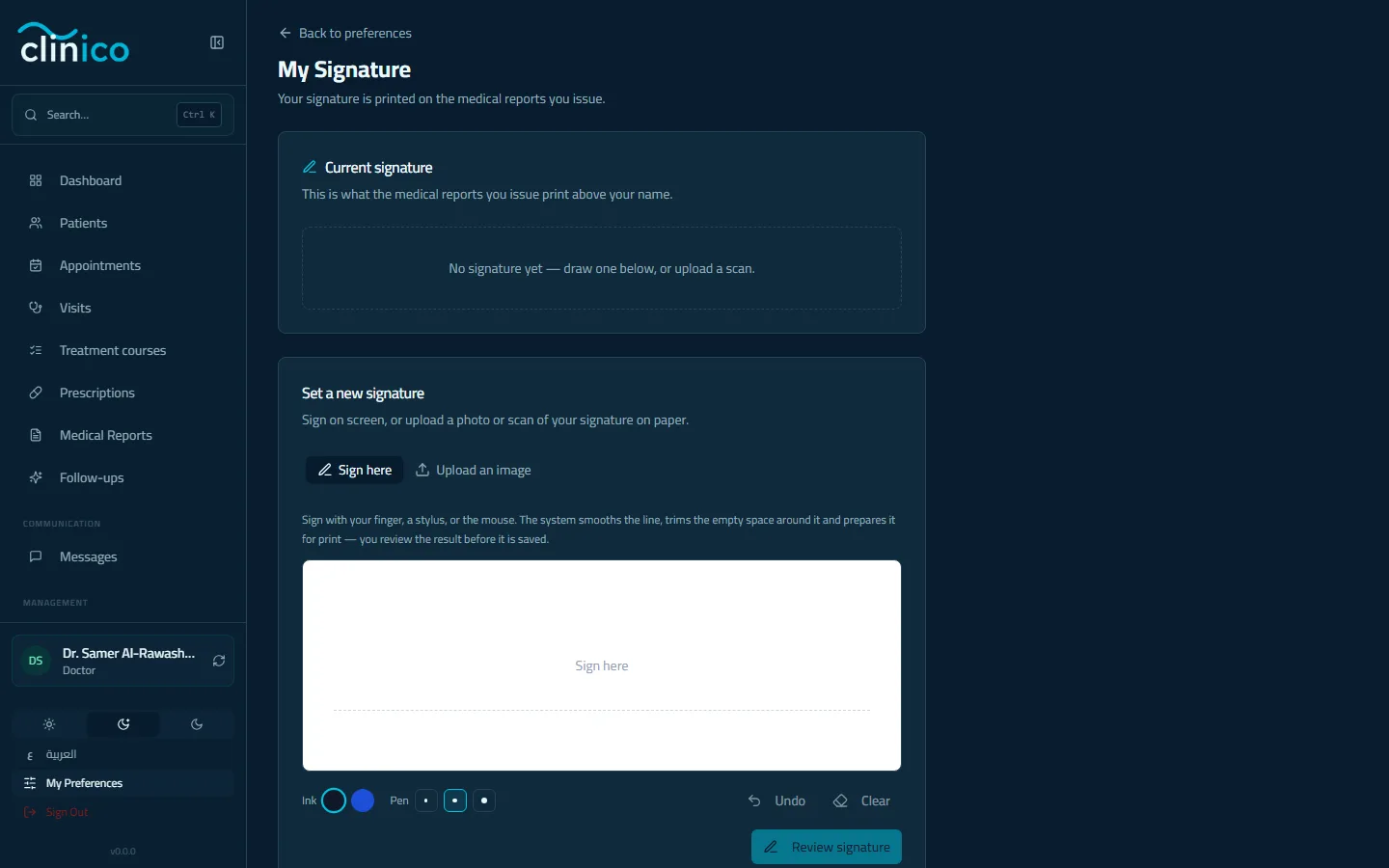
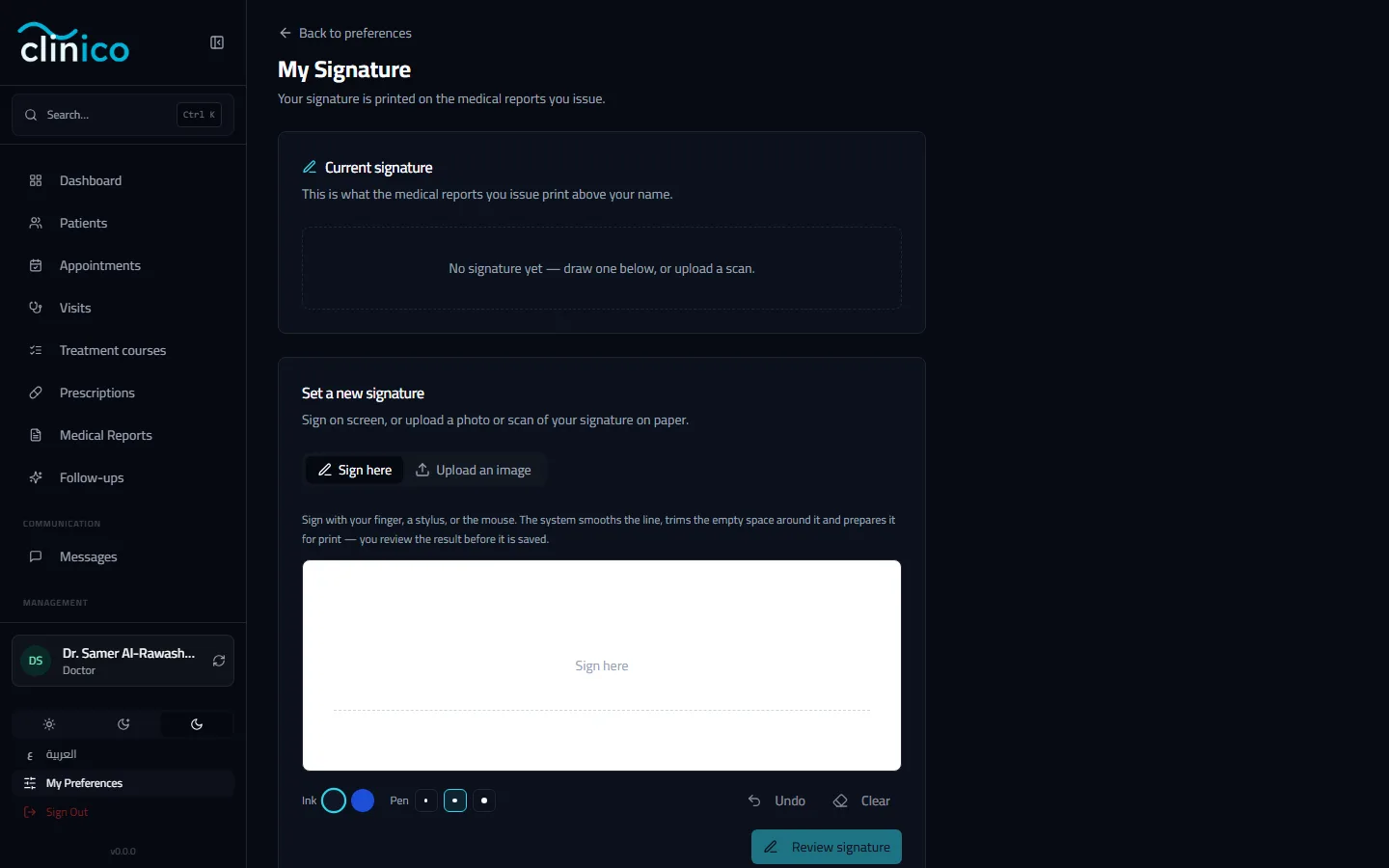
The My Signature page Click Review signature, check it, then Save. Your signature then prints with your name on your documents, as long as the clinic's prescription design shows the signature block.