

Start and complete a visit
Start the visit from today's queue, write your notes, add services or a prescription, and complete it.
A visit is the doctor's working screen for one appointment: the consultation form, the services performed, images and prescriptions all live there. Once you complete it, it becomes a permanent record.
Before you start
- The patient must have an appointment and be checked in by the front desk. See Check in, reschedule or cancel.
- If your clinic requires nurse preparation, the patient reaches you after the nurse has finished.
Steps
In the sidebar click Visits. Patients who are ready for you are listed under Today's Queue; click Start next to the patient. You can also open the appointment and click Start Visit.
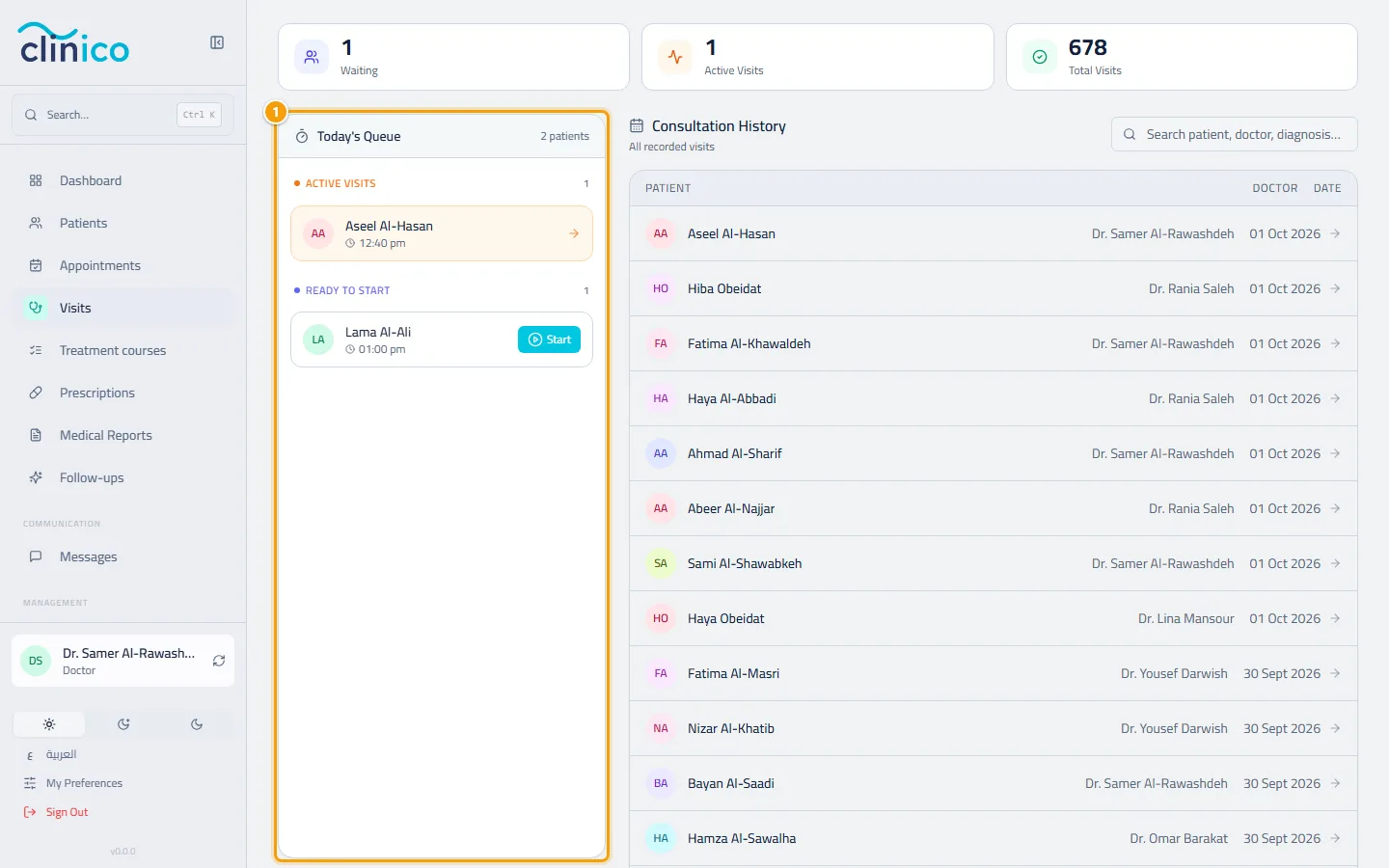
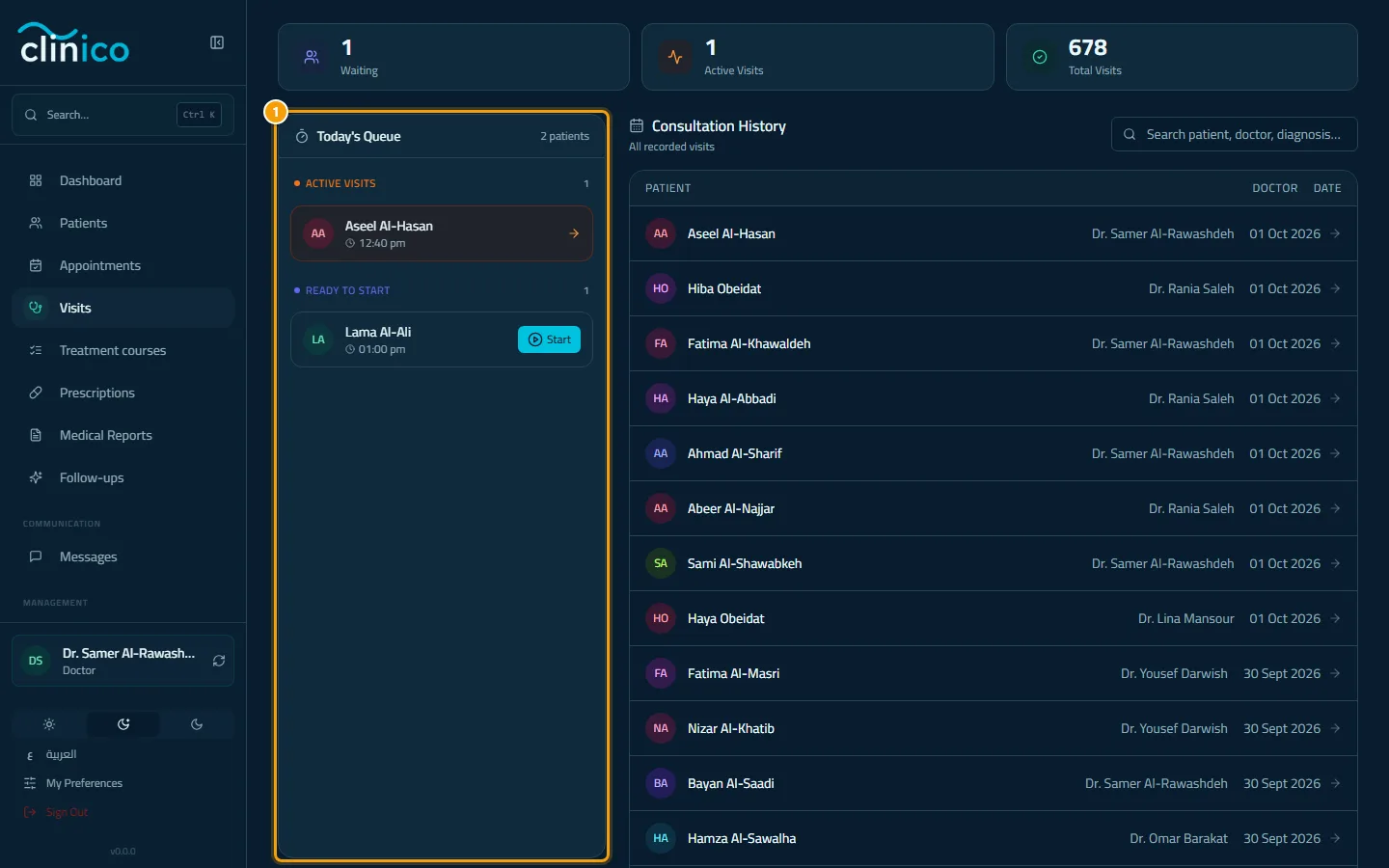
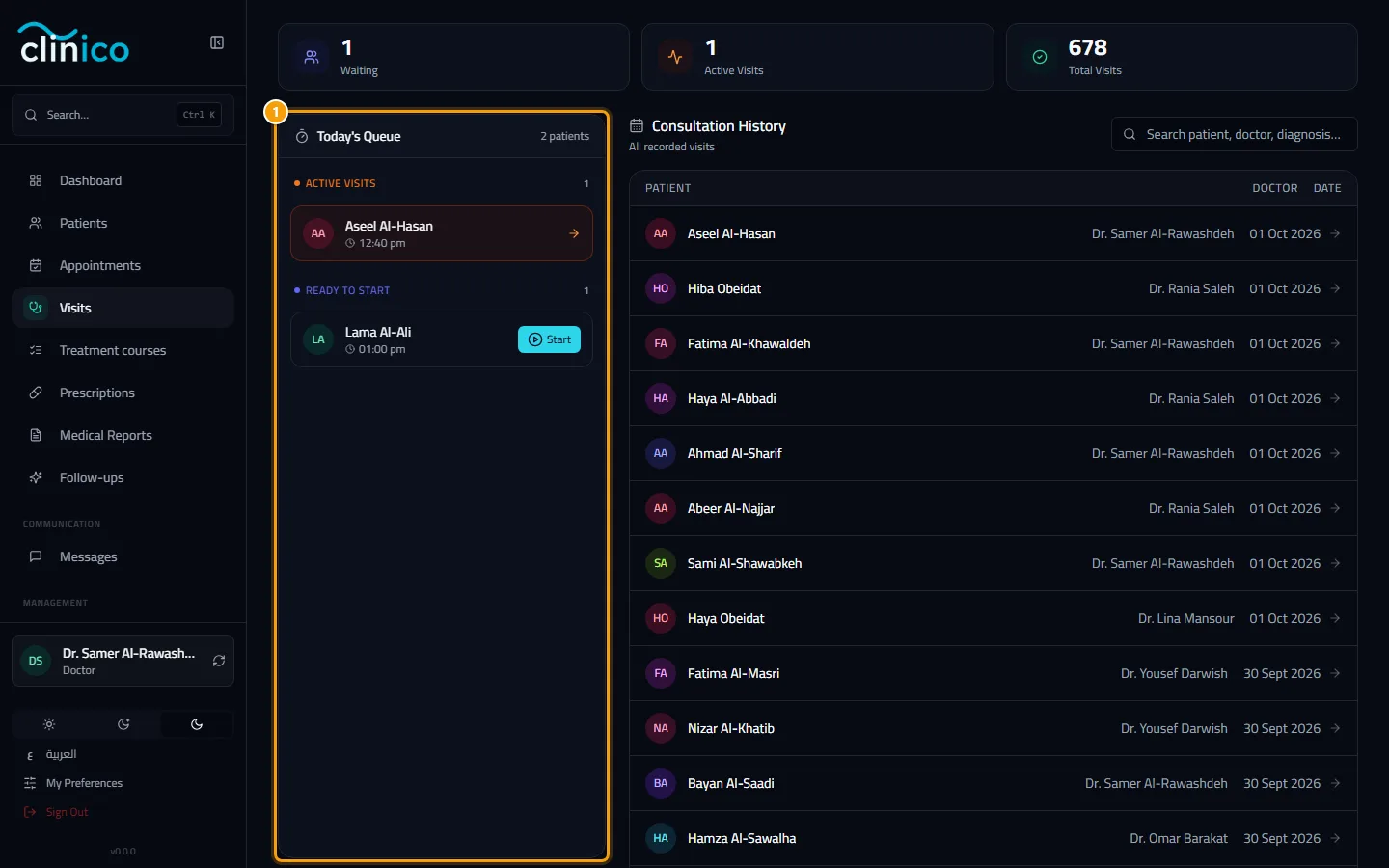
Today's Queue on the visits page Fill in the consultation form. Each section opens with a click, and your work is saved as a draft while you type. If you come back after a break, Clinico offers Restore Draft for unsaved notes. Click Save Notes whenever you want to save explicitly.
Add what was done today under Services & Packages with Add Service. Clinical photos go under Clinical Images with Upload Image.
To prescribe, click Create Prescription at the top of the visit; the patient is already filled in. See Write and print a prescription. If your clinic uses the nurse workspace, Nurse task hands a free-text instruction to the nurses.
When you are finished, click Complete Visit and confirm. Clinico closes the appointment, and the services you recorded are ready for the front desk to invoice.
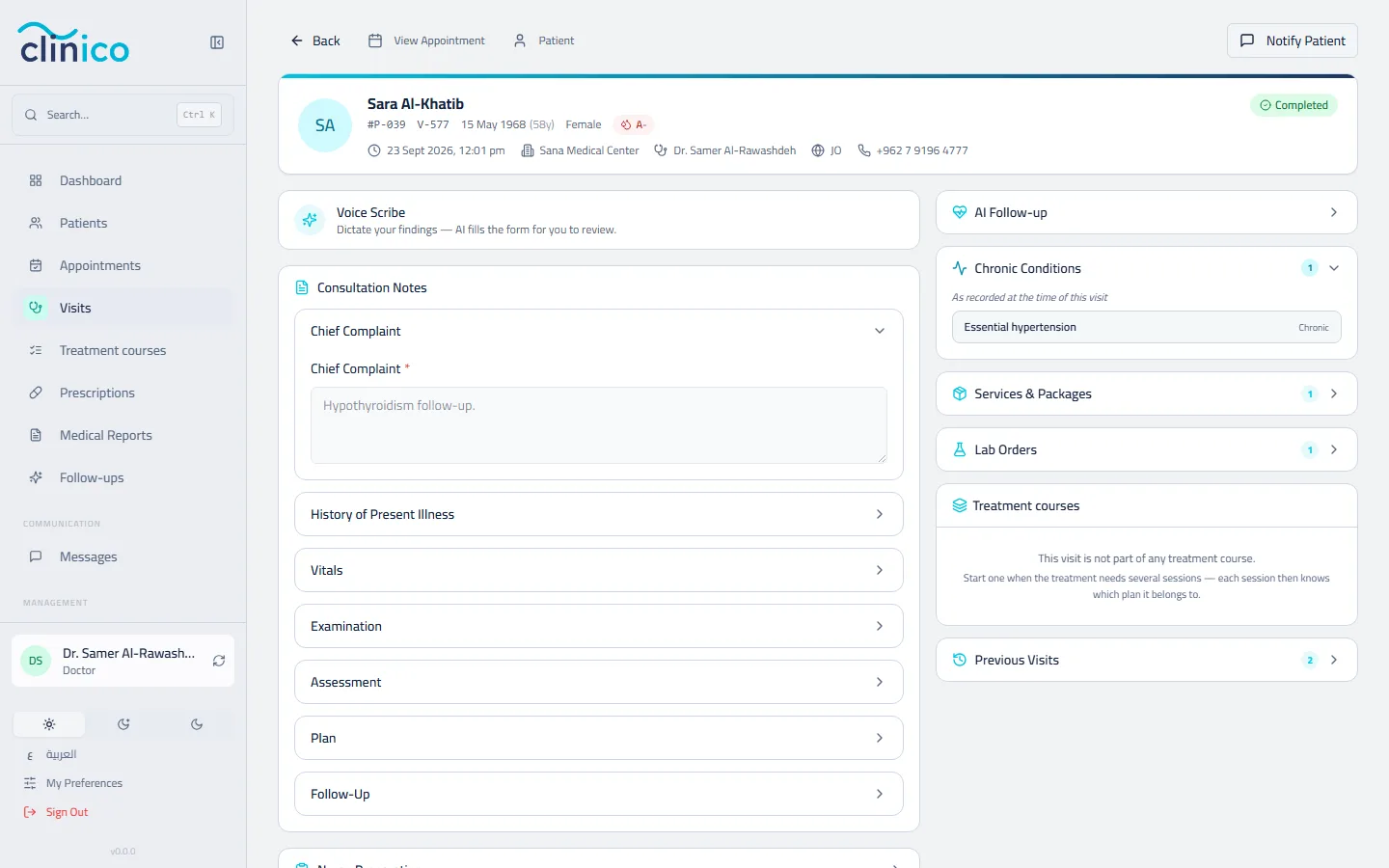
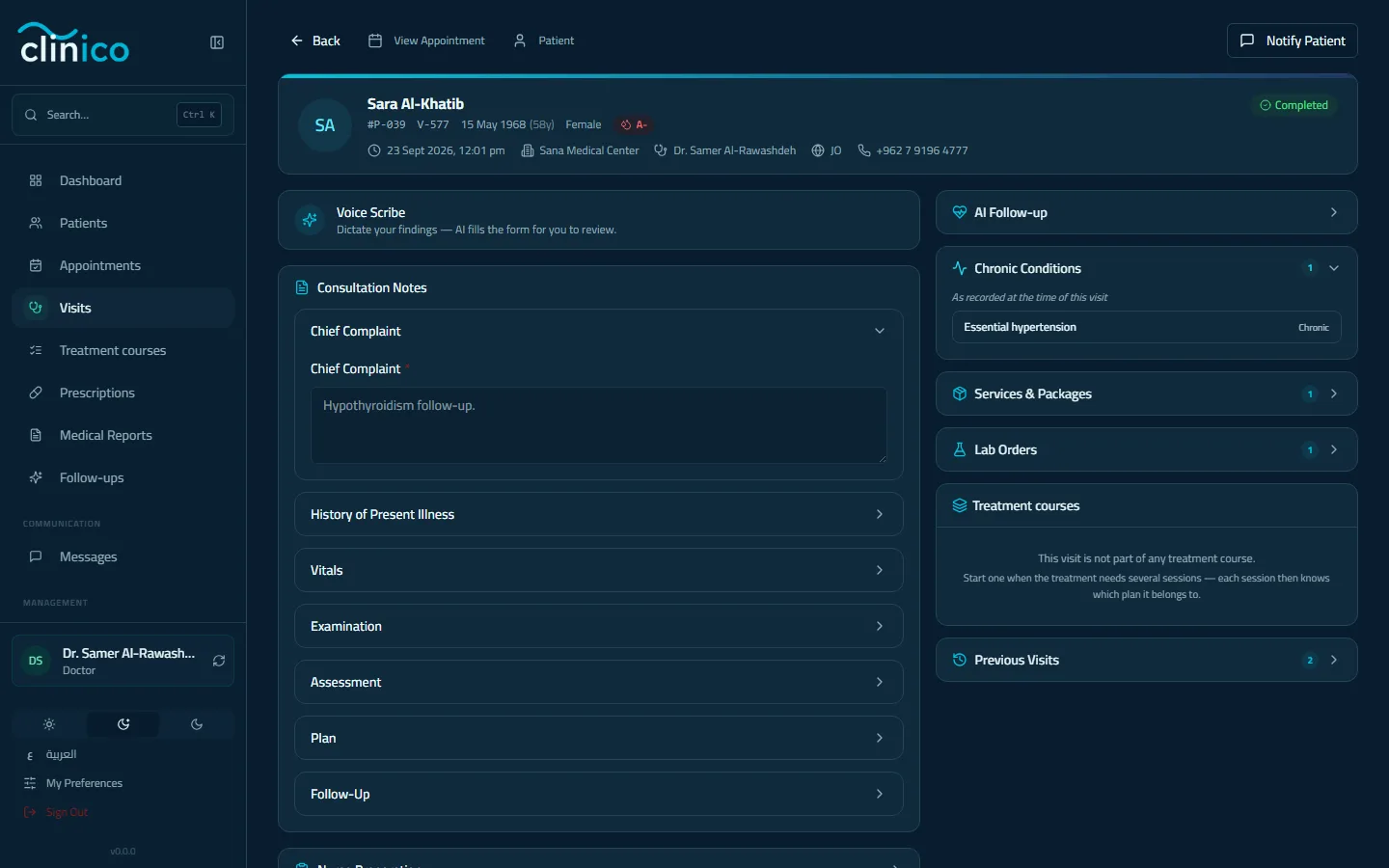
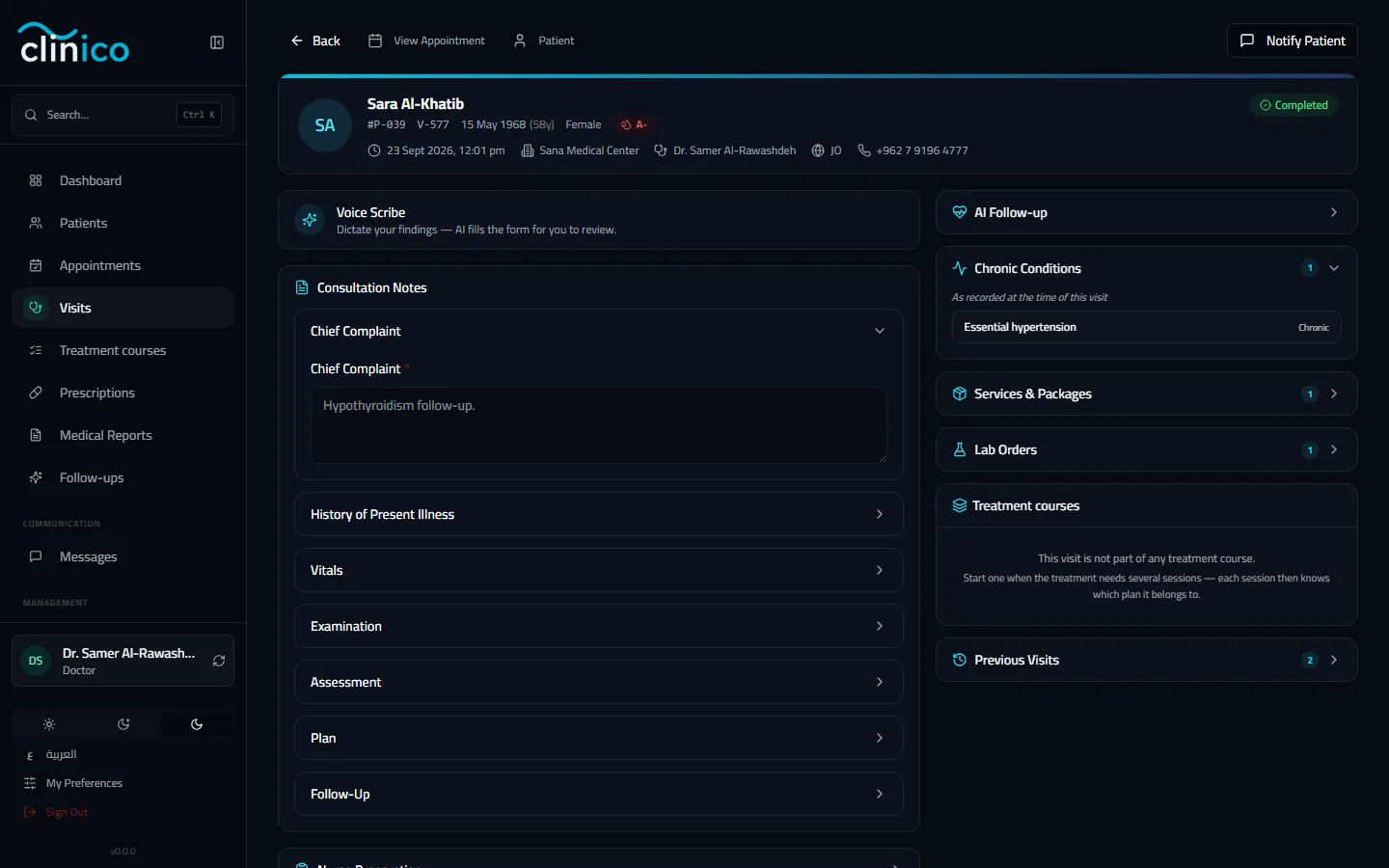
A completed visit is read-only
After the visit
- The front desk invoices the visit: Issue an invoice and take a payment.
- If the appointment was booked with another doctor, your clinic's setting decides whether you may write in it or only view it; the page says "view only" when you may not.
- Multi-session treatment: Run a multi-session treatment course.